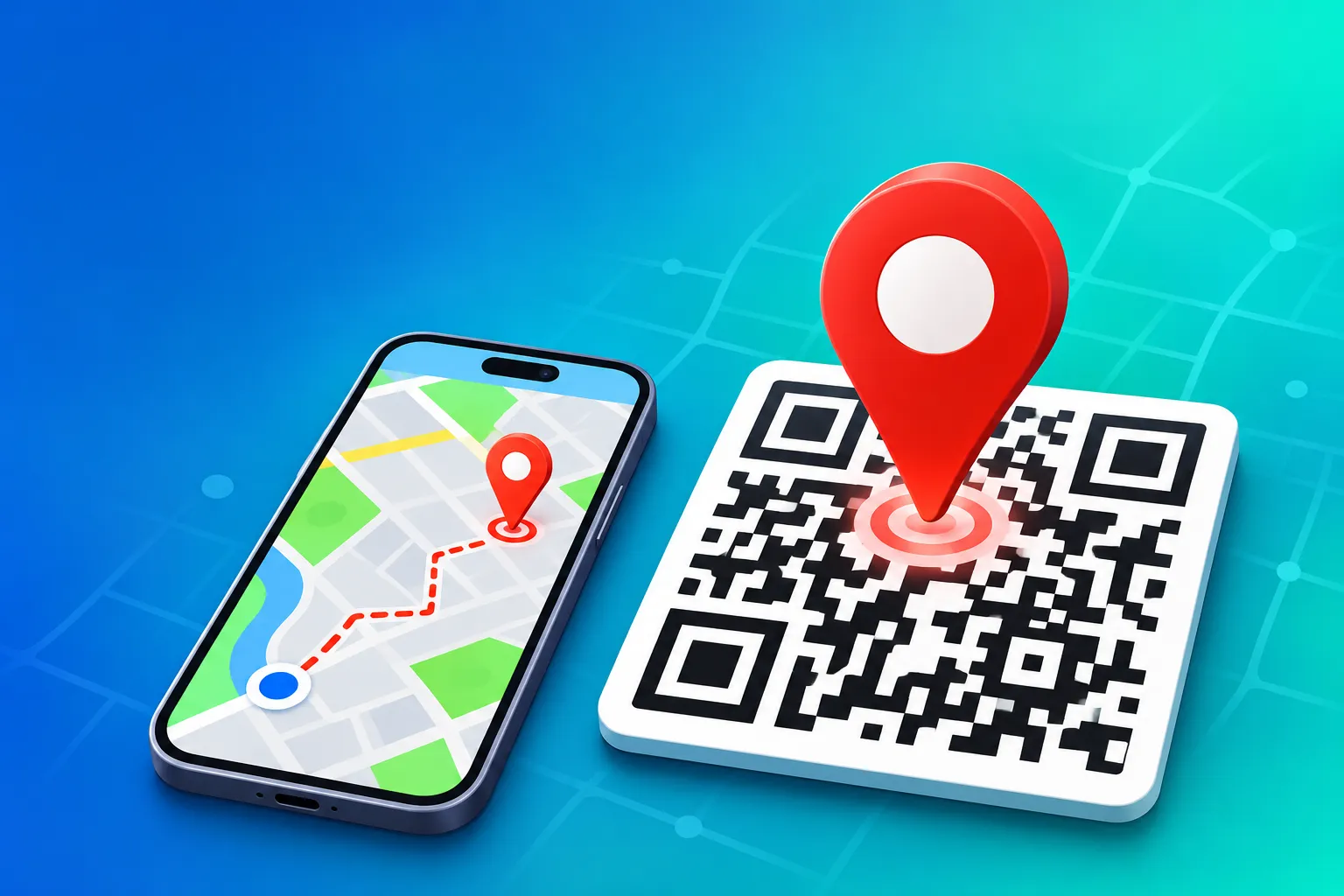
If you have ever hosted a function, run a small shop down a side lane, or ordered something to a home that maps can't quite find, you know the routine. The phone rings. Someone is standing at the wrong gate. You try to explain: second left after the temple, look for the blue building, no, the other blue building.
A location QR code ends those calls. People scan it, their map app opens with a pin on the exact spot, and they tap Start. No spelling out street names, no copy-pasting long addresses, no guesswork at the last turn.
This guide shows you how to generate a QR code for a location for free, from either a phone or a computer. You will learn three ways to capture the place, how to pick the right file size for invitations, flyers and banners, and how to test the code so it lands people where you actually want them.
What Happens When Someone Scans a Location QR Code
Understanding this one detail helps you make better choices later.
A location QR code doesn't contain a map. It contains a short piece of text, either a Google Maps link or a pair of coordinates turned into a map address. When a phone camera reads it, the phone shows that address and offers to open it.
On most Android phones, the Google Maps app opens straight away with the place or pin loaded. On an iPhone, it opens in the Google Maps app if it is installed, and otherwise in the browser, where the visitor can still view the pin and start directions. Either way, the person scanning needs nothing special: no app download, no account, no typing.
Since FastQR creates static codes, the location is written permanently into the image. That makes the code reliable for years, but it also means a new address needs a new code.
Before You Start: Link or Pin?
FastQR accepts a location in two ways, and the right one depends on what you are sharing.
- A Google Maps link works best for places that already exist on Google Maps with a name, such as a shop, clinic, restaurant, hall or office. Visitors see the business name, photos, timings and reviews along with the route.
- Coordinates (a dropped pin) work best for spots without a proper listing: a house in a new colony, a farmhouse, a plot, a side gate, a parking area or a meeting point on a trail.
One rule to remember: if you fill in both a link and coordinates, the generator uses the link. To encode a precise pin, keep the link field empty. The tool page also has a handy table showing how many decimal places you need for different levels of accuracy.
Method 1: Generate a Location QR Code From a Google Maps Link
Step 1: Copy the share link on your phone
- Open the Google Maps app and search for the place.
- Tap the place name at the bottom to open its details.
- Tap Share, then choose Copy link (on some phones you may see Copy to clipboard).
Or copy it on a computer
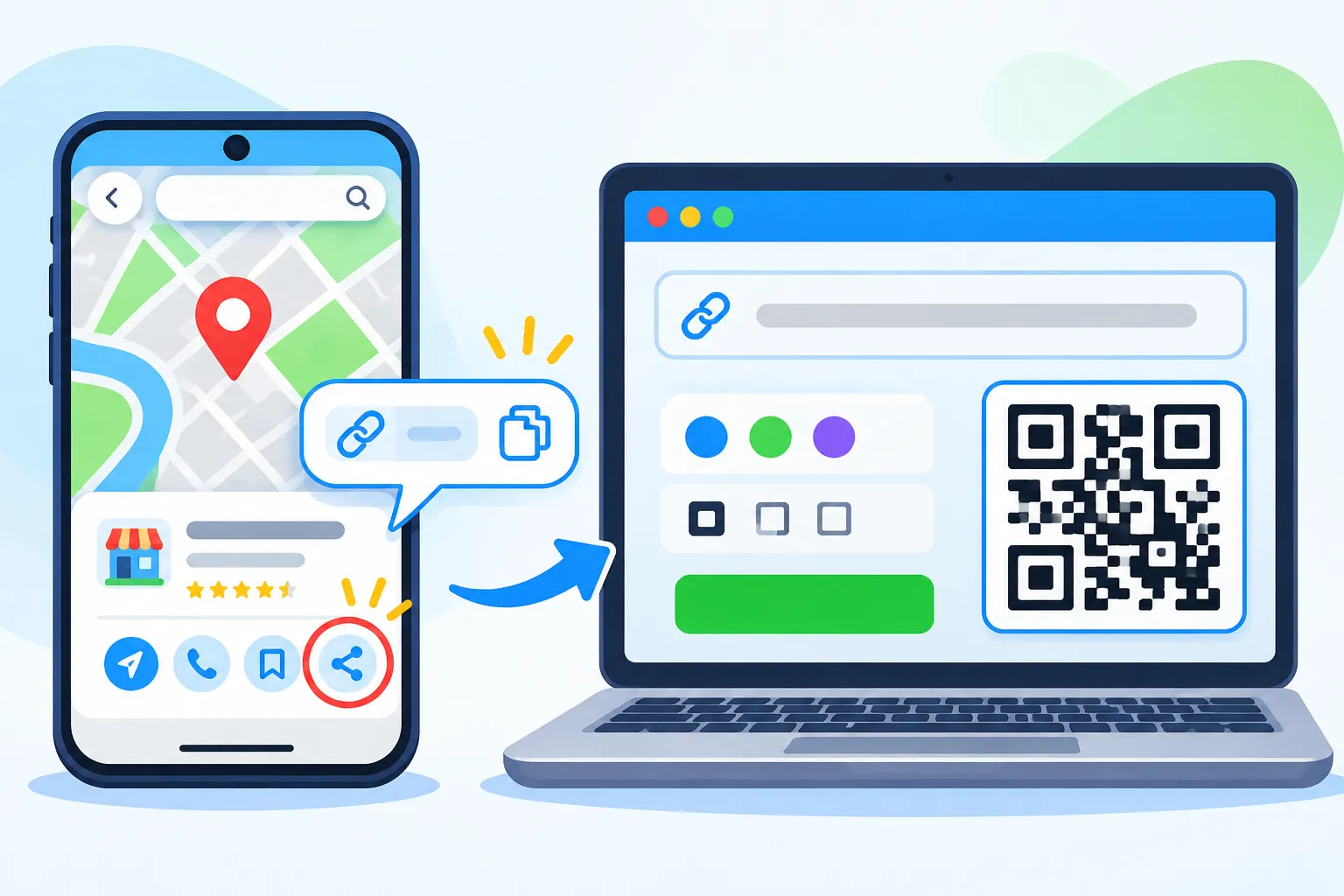
- Open Google Maps in your browser and search for the place.
- Click Share in the left panel.
- Click Copy link.
Use the Share button rather than copying the address bar. The share link is shorter and opens more reliably on phones.
Step 2: Turn the link into a QR code
- Open the Location QR Code Generator.
- Paste the link into the Google Maps link field.
- Choose a single color, a two-color gradient or a three-color gradient. Keep it dark against a light background.
- Upload a logo if you want one. Keep it small and simple.
- Click Generate your QR code now and check the preview.
- Choose PNG or JPEG and a size, then click Download Now.
Method 2: Generate a QR Code From Exact Coordinates
This method is ideal when the address pin lands in the wrong spot, or when there is no address at all.
Step 1: Find the coordinates on your phone
- Open Google Maps and zoom in closely on the exact spot, such as your gate or the parking entrance.
- Press and hold on that point until a red pin drops.
- The coordinates appear in the search bar at the top, written as two decimal numbers like 21.170240, 72.831062.
- Tap and copy them, or note them down.
Or find them on a computer
- Right-click the exact spot in Google Maps.
- The coordinates appear as the first line of the menu.
- Click them once to copy them to your clipboard.
Step 2: Enter them in the generator
- Open the generator and make sure the Google Maps link field is empty.
- Paste the first number into Latitude and the second into Longitude.
- Customize, generate and download as before.
Latitude always comes first. If your pin suddenly appears in the ocean, the two numbers are probably swapped, or a minus sign went missing.
Method 3: Pick the Spot Directly on the FastQR Map
Don't want to switch between apps? The generator has its own map.
- Leave the link field empty.
- Use the map labelled Pick the spot on the map to zoom in on your area.
- Click the exact point. Latitude and longitude fill in automatically to six decimal places.
- Generate and download.
This is the fastest option when you are already at a computer and know the area well.
Choosing the Right Size and Format
FastQR offers six sizes, from Small (200 × 200) to Ultra HD (2000 × 2000), in PNG or JPEG. Here is a practical way to choose:
Where the code will be used | Suggested size | Format |
|---|---|---|
WhatsApp message, email, Instagram story | Medium 500 × 500 or Large 1000 × 1000 | JPEG or PNG |
Website contact page, email signature | Medium 500 × 500 | PNG |
Wedding card, invitation, visiting card | Large 1000 × 1000 or HD 1500 × 1500 | PNG |
Flyer, menu card, standee | HD 1500 × 1500 | PNG |
Outdoor banner, hoarding, gate board | Ultra HD 2000 × 2000 | PNG |
Pixel size controls how sharp the file is. The printed size controls how far away people can scan it from. On an invitation card, around 2.5 cm is comfortable to scan at arm's length. On a banner meant to be read from a few metres away, go much larger. Our QR code size guide gives detailed print measurements.
Practical Ways People Use Location QR Codes
Wedding cards and family functions
Print one code for the venue and, if parking is separate, a second for the car park. Label each clearly. Guests coming from another city can save the location the day they receive the card. For more ideas, see our guide to QR codes on wedding invitations.
Home deliveries and first-time visitors
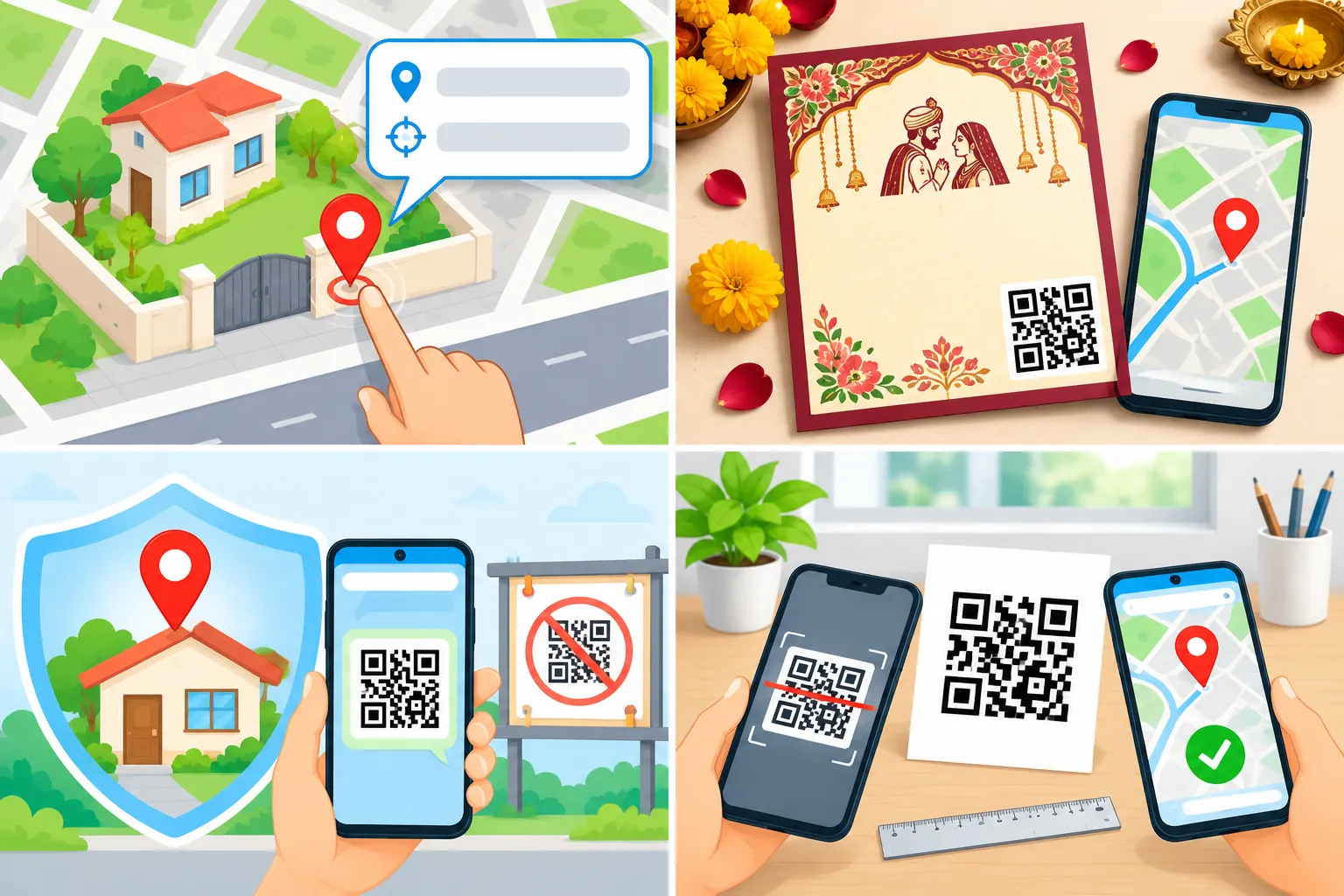
New housing societies and colonies often confuse map apps. A code pinned to your building entrance, shared once on WhatsApp with a regular delivery partner or a relative visiting for the first time, saves a lot of back-and-forth.
Plots, farmhouses and property sites
Real estate agents can add a pin-based code to brochures and site boards so buyers reach the exact plot, not just the nearest village name.
Homestays and rentals
Put a code in your booking confirmation or welcome card so guests arriving late at night drive straight to your gate.
Clinics, coaching classes and offices
Add the code to appointment slips, admission forms or visiting cards. Businesses with a Google listing should use the Maps link so patients and students also see timings. Our article on Google Maps location QR codes for businesses goes deeper into the marketing side.
School trips, treks and meet-ups
Share a pin for the meeting point so everyone gathers in the same corner of a large ground or parking lot.
Privacy: Think Before Sharing Your Home Location
A pin-based code is precise, sometimes to within a few centimetres. That is exactly what you want for guests and couriers, and exactly what you don't want on a public social media post.
- Share home location codes privately, through WhatsApp, a printed card or an email, rather than on public pages.
- For businesses, use your public Google Maps listing link, which shows only what you have already made public.
- Don't print home codes on items that may be left in public places, such as event posters or notice boards.
- If you move, stop using the old code and create a new one.
Test Before You Print
A two-minute check prevents a box of useless cards.
- Scan with two phones, ideally one Android and one iPhone.
- Check where the pin lands. Zoom in and confirm it is at the entrance you intended, not the middle of the building.
- Start navigation once to see which route the app suggests. If it points to a back lane or a closed gate, move your pin.
- Print a test copy at the final size and scan it from the distance people will actually stand.
- Check contrast if you used colors or a background image. Pale gradients look nice on screen but often fail on paper. Our guide on whether a QR code can be any colour explains the safe options.
Common Mistakes and How to Fix Them
Mistake | What goes wrong | Fix |
|---|---|---|
Link and coordinates both filled | The link is used, your pin is ignored | Clear the link field to encode the pin |
Latitude and longitude swapped | Pin appears in another country or the sea | Put latitude first, then longitude |
Minus sign dropped | Pin jumps to another continent | Keep negative values for west or south locations |
Address pin used for a big campus | Visitors reach the wrong gate | Drop a pin on the exact entrance |
Code printed too small | Guests struggle to scan | Print at least about 2.5 cm on cards |
Light-colored code on busy background | Phones can't read it | Use a dark color on a plain light background |
Old code after shifting premises | People go to your old address | Generate a new code and replace prints |
Location QR Code vs Typing an Address vs Sharing Live Location
Each option has its place:
- Typing an address works for well-mapped city addresses but invites spelling errors and often lands on the wrong side of large buildings.
- Sharing live location on a messaging app is great for meeting a friend right now, but it is temporary and personal.
- A location QR code is best for anything printed or shared with many people over time: invitations, signboards, brochures, packaging and welcome kits.
For contact details alongside the location, pair it with a WhatsApp QR code so people can message you if they get lost. And if your venue page or booking form is online, our guide on how to make a QR code for a link covers those too.
Final Thoughts
Generating a QR code for a location takes about two minutes, and it saves far more time than that in phone calls and wrong turns. Use a Google Maps link when you want people to see your business details. Use a dropped pin when you need precision or there is no proper address. Pick a sensible size, keep the colors dark on light, and always test the code before printing.
Ready to try it? Open the free Location QR Code Generator, drop your pin and download your code. No signup needed.
Frequently Asked Questions
How do I generate a QR code for a location for free?
Open the FastQR Location QR Code Generator, paste a Google Maps share link or click the exact spot on the map to fill in latitude and longitude, then press Generate and download the code as a PNG or JPEG. It is free and needs no signup.
How do I make a QR code for a Google Maps location?
In Google Maps, open the place, tap Share and copy the link. Paste that link into the Google Maps link field of a location QR code generator, generate the code and download it.
Can I create a location QR code without an address?
Yes. Drop a pin on the exact spot in Google Maps or on the generator's map, copy the latitude and longitude, and use those instead of an address. This works well for farms, plots, trails and side gates.
What happens when someone scans a location QR code?
Their phone reads the map link inside the code and opens it in Google Maps, or in the browser if the app isn't installed. The visitor sees the pin and can start turn-by-turn directions.
Does a location QR code work on iPhone?
Yes. The iPhone Camera app reads the code and opens the location in Google Maps if installed, or in Safari otherwise, where directions are still available.
Can I change the location after printing the QR code?
No. FastQR codes are static, so the location is stored inside the image. If the address changes, generate a new code and replace the printed or digital copies.
What size should a location QR code be on a wedding card?
Download at least a 1000 × 1000 pixel PNG and print it about 2.5 cm wide or larger. Leave a white border around it and test a printed sample before ordering all the cards.
Is it safe to share my home location as a QR code?
It is safe when shared privately with people you trust, such as guests or delivery partners. Avoid posting a home location code publicly, because a pin-based code reveals your exact position.