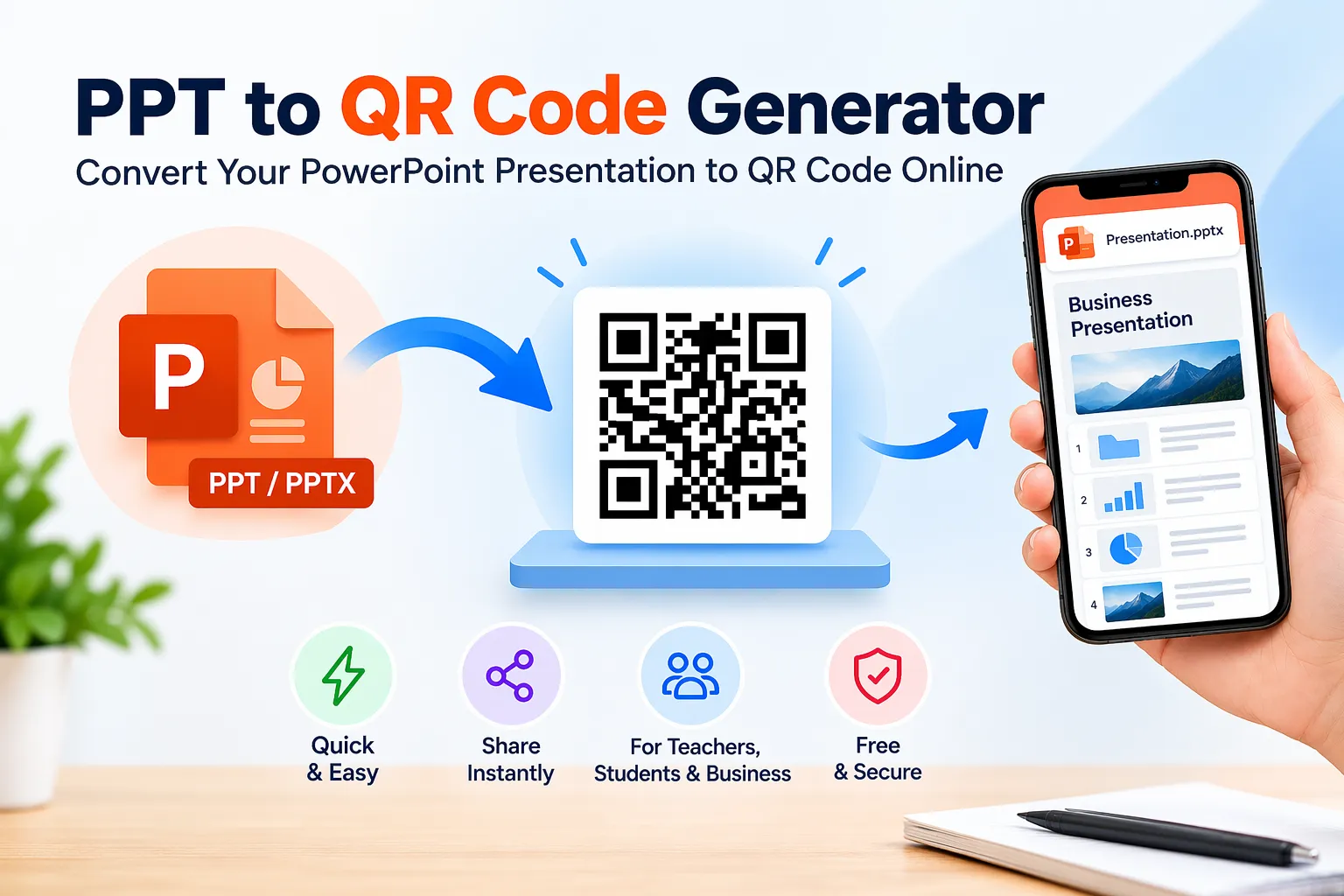
Sharing a PowerPoint presentation with a class, team, or event audience can take more time than expected. Sending individual attachments or asking people to type a long download link is not always convenient. A PPT to QR code generator gives you another option: create a scannable code that takes people to your presentation.
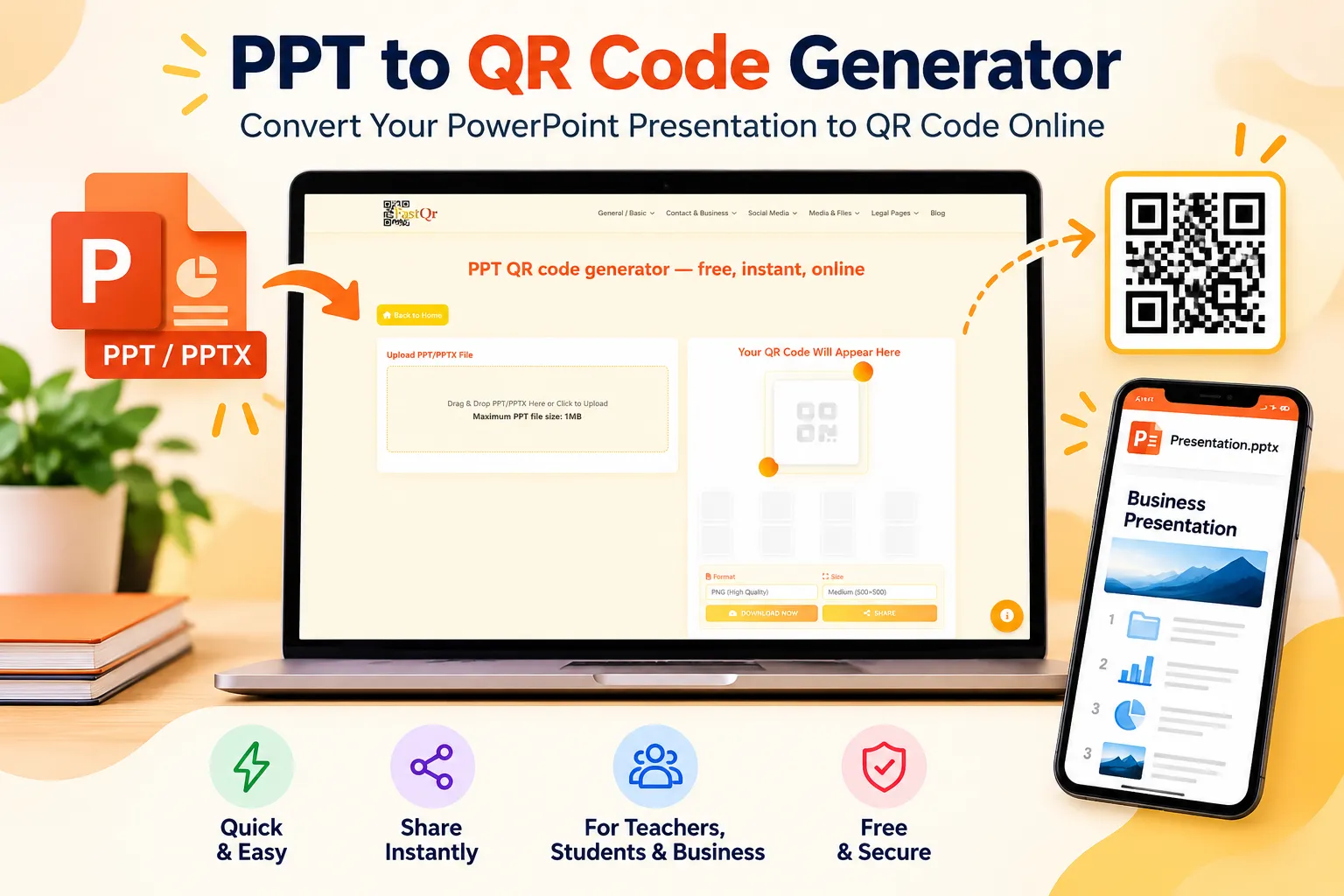
With the FastQR PPT QR Code Generator, you can upload a supported PPT or PPTX file, generate a QR code, customize its appearance, and download the image to share. The current tool page lists a maximum upload size of 1 MB and offers PNG and JPEG downloads.
What Is a PPT to QR Code Generator?
A PPT to QR code generator creates a scannable QR code that directs people to a PowerPoint presentation. A QR code is a pattern that a smartphone camera or scanning app can read. Depending on the information encoded, it can open a webpage or take the user to an online file.
For presentation sharing, the QR code generally contains a link to the hosted file rather than the entire PPT or PPTX itself. When someone scans it, their device opens that link. The presentation must remain available at the destination for the code to keep working.
How to Convert PPT to QR Code Online Using FastQR
You can create a PowerPoint QR code through your browser. Follow these steps:
1. Open the FastQR PPT QR Generator
Visit https://fastqr.in/ppt-qr-generator. Find the upload area on the tool page.
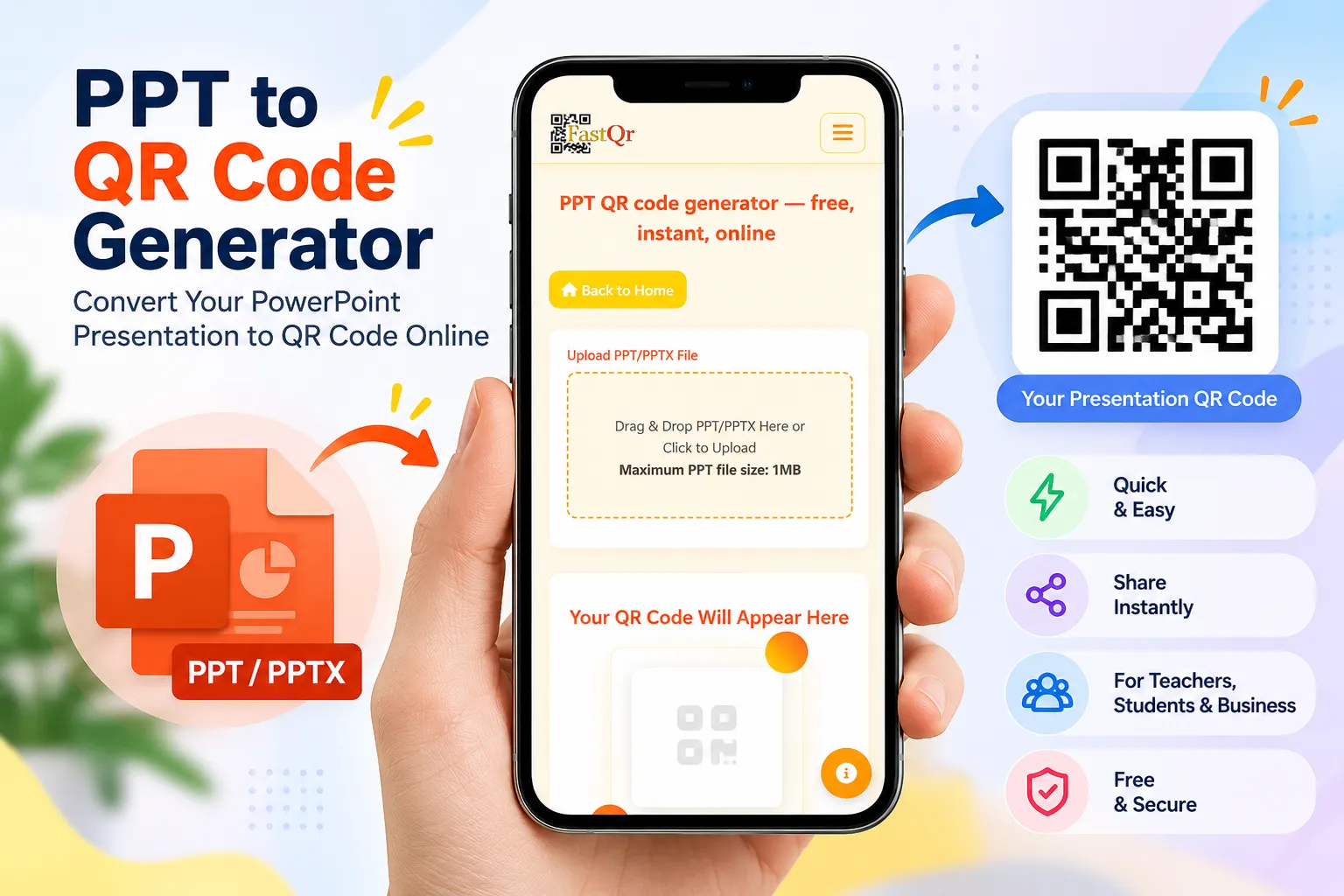
2. Upload Your PPT or PPTX File
Select your presentation or drag it into the upload area. FastQR's tool page supports .ppt and .pptx files. Check the file size before uploading: the current maximum shown on the page is 1 MB.
If the presentation is too large, try compressing its images, removing media you do not need, or splitting the slides into smaller files.
3. Generate the QR Code
Submit the selected file using the generator. FastQR creates a QR code associated with the presentation's access link. The QR code is what other people will scan to reach the file.
4. Customize the Design
FastQR lists design options for colour, gradients, module shapes, and logo styling. Keep the code easy to scan.
5. Download and Test It
Download the generated image in an available format, such as PNG or JPEG. Before sharing it with a group, scan it with a phone and check that it opens the correct presentation. You can then place the image on a slide, handout, poster, or digital message.
Create your code: Open FastQR's PPT to QR Code Generator.
Benefits of Using a PowerPoint QR Code
One code for many people: Display a single QR code instead of sending separate attachments to every attendee.
Less typing: People can scan the code rather than enter a long web address manually.
Useful in classrooms: Teachers can share lesson slides, revision notes, or assignment material with students.
Convenient at meetings: Colleagues and clients can access a presentation after a meeting or product demonstration.
Easy to reuse: Add the downloaded QR image to a presentation, brochure, event poster, or training handout.
Remember that the QR code only provides a route to the file. People still need permission to open it, and an internet connection may be required if the presentation is hosted online.
How to Share PowerPoint Presentations Using QR Codes
Once you have downloaded the QR image, choose a place where your audience can scan it.
In a Classroom
A teacher can display the code on a projector or print it on a worksheet. Students scan it to open the linked slides and review the lesson later. Make sure the code stays on screen long enough for everyone to scan it.
During a Meeting or Conference
Add the QR code to the final slide or a printed event handout. Attendees can scan it to access the presentation after the talk. If the slides contain private business information, restrict file access to the intended recipients.
In Training Materials
Trainers can add a code to a workbook, noticeboard, or session handout. Employees or learners can use it to reach the supporting presentation without searching through email attachments.
Through Messaging Apps
You can send the QR image in a group chat. A recipient may scan it using another device or a phone feature that reads QR codes from images. Sharing the QR image is not the same as attaching the PowerPoint file: the code must still point to a working presentation link.
Who Can Use a PPT QR Code Generator?
Teachers and educators: Share classroom presentations, study notes, and revision material.
Students: Provide classmates or evaluators with access to a project presentation.
Business teams: Distribute sales decks, proposals, product information, or meeting slides.
Marketing teams: Add presentation access to event displays and promotional materials.
Event speakers and trainers: Give attendees a simple way to find workshop or conference slides.
Choose the sharing permissions carefully, particularly when a presentation contains personal, internal, or confidential information.
PPT vs PPTX: Which File Format Can You Share?
PPT and PPTX are both Microsoft PowerPoint presentation formats, but they use different file structures.
| Feature | PPT | PPTX |
|---|---|---|
| File extension | .ppt | .pptx |
| Format | Older binary format | Office Open XML format |
| Common use | Older presentations | Modern presentations |
PPT is the older format used by earlier PowerPoint versions. PPTX was introduced with PowerPoint 2007 and is widely used for newer presentations. FastQR's tool page lists support for both formats, subject to its upload-size limit.
If your audience only needs to read the slides and does not need to edit them, a PDF may be a practical alternative. Choose the format that best suits how recipients will use the material.
How to Reduce PowerPoint File Size Before Uploading
FastQR currently lists a 1 MB upload limit, so some presentations may need to be made smaller first. Large images and embedded audio or video can increase a file's size.
Try these steps:
Compress pictures: In PowerPoint, select an image and use the Picture Format options to find Compress Pictures. Choose a suitable resolution and save a copy.
Remove unused media: Delete videos, audio, or other embedded elements that are not needed in the shared version.
Remove unnecessary slides: Take out duplicate or outdated slides before saving.
Save a PPTX copy: If you have an older PPT file, try saving a copy in PPTX format and check whether it meets the upload limit.
Split a long presentation: Divide a large deck into smaller sections and create a separate QR code for each file, if each one meets the limit.
Tips for Making Your PowerPoint QR Code Easy to Scan
A QR code needs to be clear wherever you display or print it.
Use clear contrast: Choose a design where the code stands out from its background. Check the result on the actual screen or paper before distributing it.
Choose a suitable size: Make the code large enough for people to scan from the distance at which it will be viewed.
Leave a clear margin: Keep text, borders, and decorative elements away from the edges of the code.
Test the destination: Scan the code and confirm that the correct presentation opens.
Add a short instruction: A caption such as "Scan to view the presentation" tells people what to expect.
Can You Share a PowerPoint Presentation Without Email?
Yes. You can display a presentation QR code on a screen, print it on a handout, add it to a noticeboard, or send the QR image through a messaging app. People scan the code to open the linked file, so you do not need to collect every recipient's email address.
Recipients may need an internet connection and permission to access the hosted presentation.
PowerPoint QR Code vs PDF QR Code: Which Is Better?
| Need | Better choice |
|---|---|
| Recipients need to edit or reuse slides | PPT or PPTX |
| Recipients only need to read the material | |
| You want to preserve animations | PPT or PPTX in compatible software |
| You want consistent page layout across devices | PDF is often more suitable |
A PowerPoint file is useful when recipients need the original slides. A PDF is often easier when the goal is simply to read or print the content. Consider providing both formats if your audience has different needs.
Common Mistakes to Avoid
Before sharing your presentation QR code, check these points:
File too large: Confirm that the presentation is within the tool's 1 MB upload limit.
Wrong version uploaded: Open the file and check that it is the final presentation.
Code not tested: Scan the downloaded image before printing or displaying it.
Unclear design: Avoid decorative choices that make the QR pattern hard to read.
Unrestricted private content: Review hidden slides, speaker notes, comments, and sensitive information before uploading or sharing.
Broken access link: Make sure the hosted file remains available and recipients have permission to open it.
Frequently Asked Questions
1. How do I convert PPT to QR code?
Open FastQR's PPT QR generator, upload a supported PowerPoint file, generate the code, and download the QR image. Scan it to check that it opens the correct presentation.
2. Can I generate a QR code for a PPTX file?
Yes. FastQR's tool page lists support for both PPT and PPTX files, with a current maximum upload size of 1 MB.
3. Is there a free PPT to QR code generator?
FastQR offers an online PPT QR code generator. Check the tool page for its current features and upload requirements before using it.
4. Can someone scan a QR code to download a PowerPoint file?
They can scan a code that points to an accessible PowerPoint file. Whether the file opens in a preview or downloads directly depends on the destination and the recipient's device or browser.
5. Does a PowerPoint QR code expire?
The QR pattern itself does not automatically expire just because time passes. However, it may stop working if the linked file is deleted, moved, or made inaccessible.
6. Can I share a presentation with students using a QR code?
Yes. A teacher can display the code on a classroom screen or print it on a worksheet so students can access the linked slides.
7. Can I add the QR code to a PowerPoint slide?
Yes. Download the QR image and insert it into the slide where you want people to find it. Test the code after adding it and make sure it is large enough to scan.
8. Do people need a QR scanner app?
Many modern smartphones can scan QR codes using the built-in camera. Some devices may need a separate scanner. Recipients also need compatible software to open or edit a PowerPoint file.
Conclusion: Create a PowerPoint QR Code with FastQR
Share your slides with students, colleagues, clients, or event attendees through one scannable code that leads to the online presentation.
To get started, visit the FastQR PPT to QR Code Generator, upload a supported PPT or PPTX file, and generate your QR code. Check the 1 MB upload limit, test the destination, and make sure the people receiving the code can access the file.
Ready to share your slides? Create your PPT QR code with FastQR.