Created by: Ashish K.
Twitter QR Code Generator: How to Create, Scan, and Share Your X Profile
Create a Twitter QR code for your X profile. Learn how to generate, scan, download, and share a profile QR code for free.
Read moreFastQR helps you create custom QR codes instantly for websites, contact cards, files, menus, social profiles, and campaigns. It is built for speed, privacy, and print-ready output, so your content stays clear on phones, posters, packaging, and business cards.
Choose a QR type, enter your data, and download a crisp QR code in seconds.
Share forms, schedules or ticket information.
Add instructions, specifications or support links to packaging.
Direct guests to an online response form.
FastQR supports commonly used QR code formats for websites, files, communication, social media and business use. Choose a type, enter your information and generate a scannable code instantly.
QR codes help people access information quickly without typing URLs or searching manually. They are widely used on packaging, printed materials, event signage, menus and business documents.
FastQR lets you create static QR codes for common use cases including website links, WiFi access, forms, PDFs, social profiles and multimedia content.
Create and download QR codes without creating an account.
Download PNG or JPG files suitable for digital use and print materials.
Generate codes for URLs, WiFi, forms, files, social profiles and more from a single tool.
A QR code is a two-dimensional barcode that stores information in a machine-readable format. Smartphones and scanning devices can read the code and convert it into text, links or other actions.
QR codes follow the ISO/IEC 18004 standard and support different data capacities depending on the version and error-correction level used.
Up to 7,089 numeric or 4,296 alphanumeric characters.
Levels L, M, Q and H help maintain readability when part of a code is damaged.
Most modern smartphones can scan QR codes directly through the camera app.
A QR code is only useful when it scans on the first try and takes people exactly where they expect to go. Generating the code takes seconds, but choosing the right type, sizing it properly, picking colours with enough contrast and placing it where people can reach it are what separate a code that works from one that gets ignored.
This guide covers everything you need to know before you print or share your next QR code: how to create one with FastQR, the difference between static and dynamic codes, which QR type fits each job, practical design and printing rules, real examples from different industries and the most common mistakes to avoid.
FastQR is designed so that anyone can create a working QR code without design software, technical knowledge or an account. The whole process happens in your browser and usually takes less than a minute.
Select what the code should do: open a website, join a WiFi network, start a WhatsApp chat, show a PDF, dial a phone number or something else. Each type has its own form, so you only fill in the fields that matter.
Paste your link, type your network name and password, or upload your file. Double-check spelling, because a static QR code stores this information permanently inside the pattern.
Create the code and look at the preview. Before downloading, scan it with your own phone camera to confirm it opens the right destination on both Android and iPhone.
Save the image as PNG for websites, emails and social posts, or JPG for quick printing. Place it on your flyer, menu, packaging, slide or business card and you are ready to go.
There are two broad kinds of QR codes. Understanding the difference helps you decide how to plan a campaign and avoid reprinting materials later.
A practical tip: if you want the flexibility of a dynamic code while still using a static one, point your QR code to a page you control, such as a landing page on your own website. You can then update that page whenever you like, and the printed code keeps working.
Using the correct type makes the experience smoother for the person scanning. A WiFi QR code, for example, connects a phone to the network automatically, while a plain link would only show the password as text. Here are the types people use most often.
The most popular option. Send people to your homepage, a product page, an online store, a booking form or a review page with a single scan.
Create URL QR →Let guests join your network without reading out long passwords. Perfect for cafes, offices, hotels, rental homes and family gatherings.
Create WiFi QR →Open a chat with your business number instantly, optionally with a pre-filled message. Great for orders, enquiries and customer support.
Create WhatsApp QR →Share menus, brochures, price lists, manuals, certificates and study notes without printing dozens of pages.
Create PDF QR →Grow followers on Instagram, Facebook, YouTube, Telegram or X by placing a profile QR code on shop counters, packaging and event banners.
Create social QR →Open a map pin to your shop, venue or office so visitors can start navigation immediately instead of searching for the address.
Create location QR →Beyond these, FastQR also supports plain text, email, phone call, image, video, audio, music playlist, PowerPoint and form QR codes. If you are unsure which to choose, ask yourself what the person should be able to do immediately after scanning: read something, open a page, contact you, connect to a network or download a file. The answer usually points straight to the right type.
Most scanning problems are caused by how a code is displayed rather than how it was generated. Follow these guidelines and your QR codes will scan reliably on posters, products and screens alike.
A useful rule of thumb is that the code should be about one tenth of the distance from which people will scan it. A code read from 30 cm needs to be roughly 3 cm wide, while a poster viewed from 2 metres needs a code around 20 cm wide.
Avoid light colours such as yellow or pastel shades for the pattern, and never invert the code to light-on-dark unless you have tested it on several phones.
The QR standard expects a clear margin around the code, ideally four modules wide. Do not place text, borders or images right against the edges, because scanners use this empty space to find the code.
The more data a code holds, the denser and smaller its modules become. Use short, clean URLs where possible so the pattern stays simple and easy to read, especially when printing small.
PNG keeps sharp edges and is ideal for digital use. For print, download the largest size available and avoid stretching or compressing the image, which can blur the module edges.
Scan the final artwork, not just the downloaded file, using at least two different phones and lighting conditions.
QR codes bridge printed material and online content, which is why they appear almost everywhere today. Here are practical ideas you can apply straight away.
Link to a PDF menu, a WhatsApp ordering number or a Google review page. A WiFi code on each table removes the most common customer question.
Add codes to product labels for usage instructions, warranty registration, ingredient details, refill reminders or a video showing how to assemble the product.
Place a code on property signboards and brochures that opens a photo gallery, a virtual tour, a location pin or a direct call to the agent.
Teachers can share worksheets, reading lists, video lessons and assignment forms. Students scan once instead of copying long links from the board.
Print codes on invitations for RSVP forms, venue directions, schedules, photo-sharing albums and playlists so guests have everything on their phones.
A QR code on a business card or email signature can open your portfolio, LinkedIn profile, booking calendar or contact details in one tap.
Guests can scan to join WiFi, read house rules, view check-out instructions, find nearby attractions or message the host without searching for contact details.
Share appointment booking links, patient intake forms, aftercare instructions and directions to the clinic, reducing paperwork at the front desk.
Link posters and flyers to volunteer sign-up forms, donation pages, event calendars and community groups to turn passing interest into action.
A QR code that fails to scan reflects poorly on the brand behind it. These simple checks prevent the problems people run into most often.
If a code is not scanning, start with the basics: increase its size, improve contrast, add more white space around it and shorten the content. In most cases one of these four changes solves the problem.
Choose a QR type, enter your content, generate the code and download the image.
Static QR codes do not expire on their own. They continue to work as long as the linked content remains available.
For most printed materials, around 2 cm × 2 cm is a practical minimum size.
Yes, but strong contrast between the foreground and background is important for reliable scanning.
QR codes themselves are safe. Always verify the destination before opening unfamiliar links.
FastQR focuses on the essentials needed for creating static QR codes quickly and reliably.
Generate a code in a few steps.
Support for links, files, WiFi access and social platforms.
High-resolution image downloads for online and offline use.
Built around the QR code format defined by ISO/IEC 18004.
Guides and tips on QR codes for business, marketing, and everyday use—updated regularly.
Created by: Ashish K.
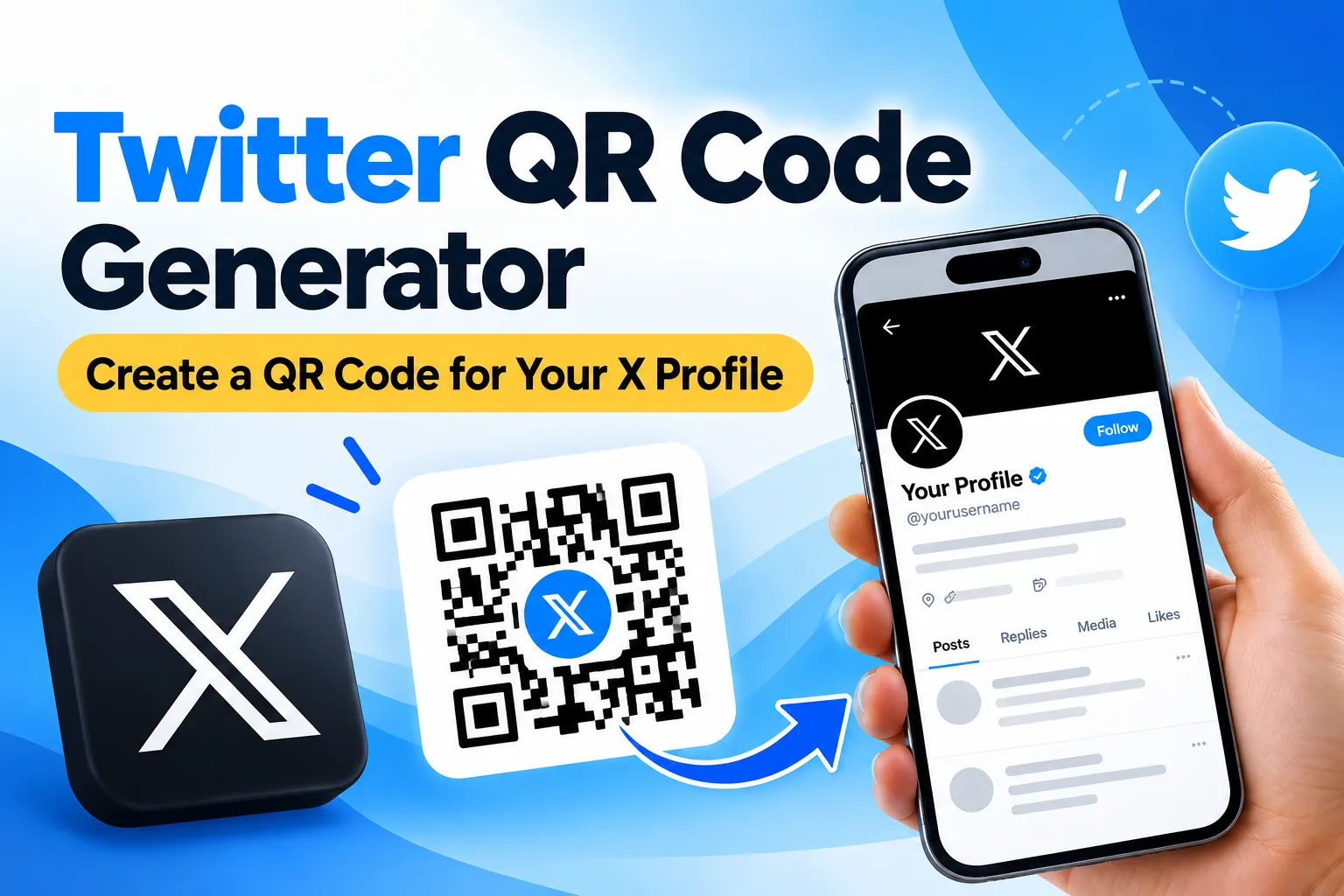
Create a Twitter QR code for your X profile. Learn how to generate, scan, download, and share a profile QR code for free.
Read more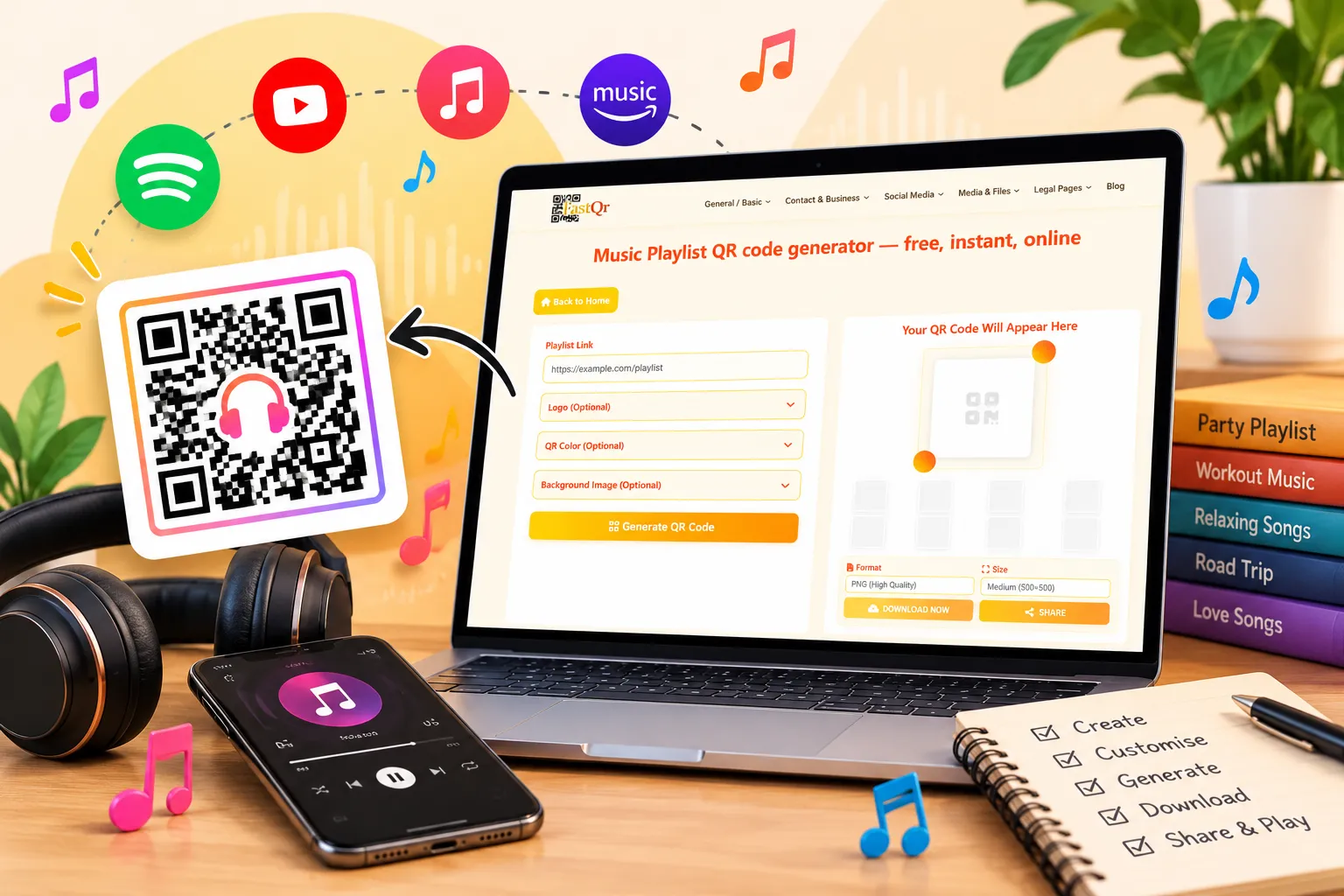
Created by: Ashish K.
Create a music playlist QR code in minutes. Learn how to share playlist links, connect listeners to music, and use QR codes for events and more.
Read more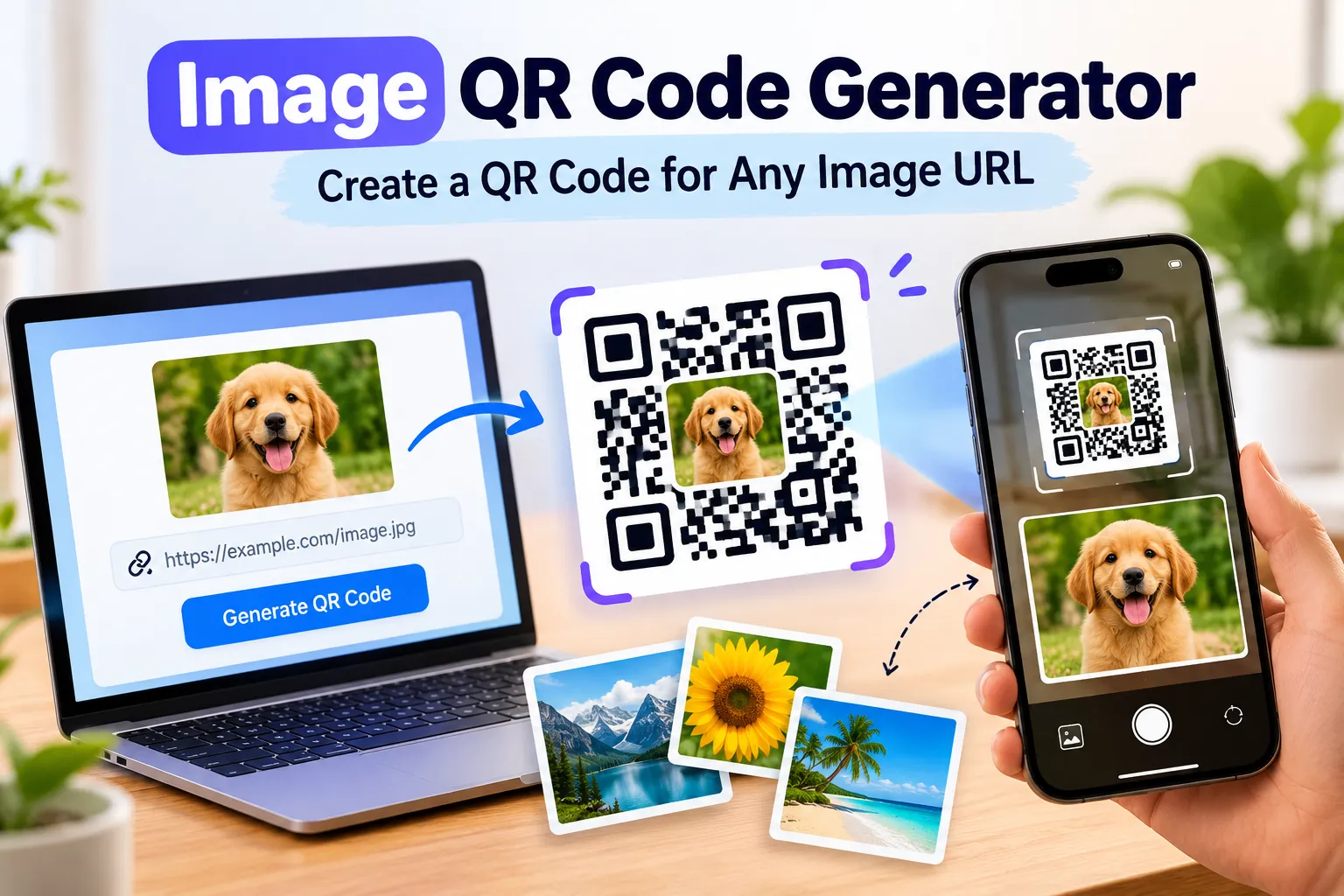
Created by: Ashish K.
Create a QR code for an image URL with FastQR. Generate, download, and share image QR codes for photos, portfolios, products, and more.
Read more
Share menus, catalogues, offers and contact information.

Provide schedules, registration forms and venue information.

Distribute learning materials and resource links.

Share portfolios, social profiles, invitations and documents.
FastQR is an online QR code generator designed to help users create static QR codes for websites, files, WiFi access and other common use cases. The tool is free to use and works directly in your browser.