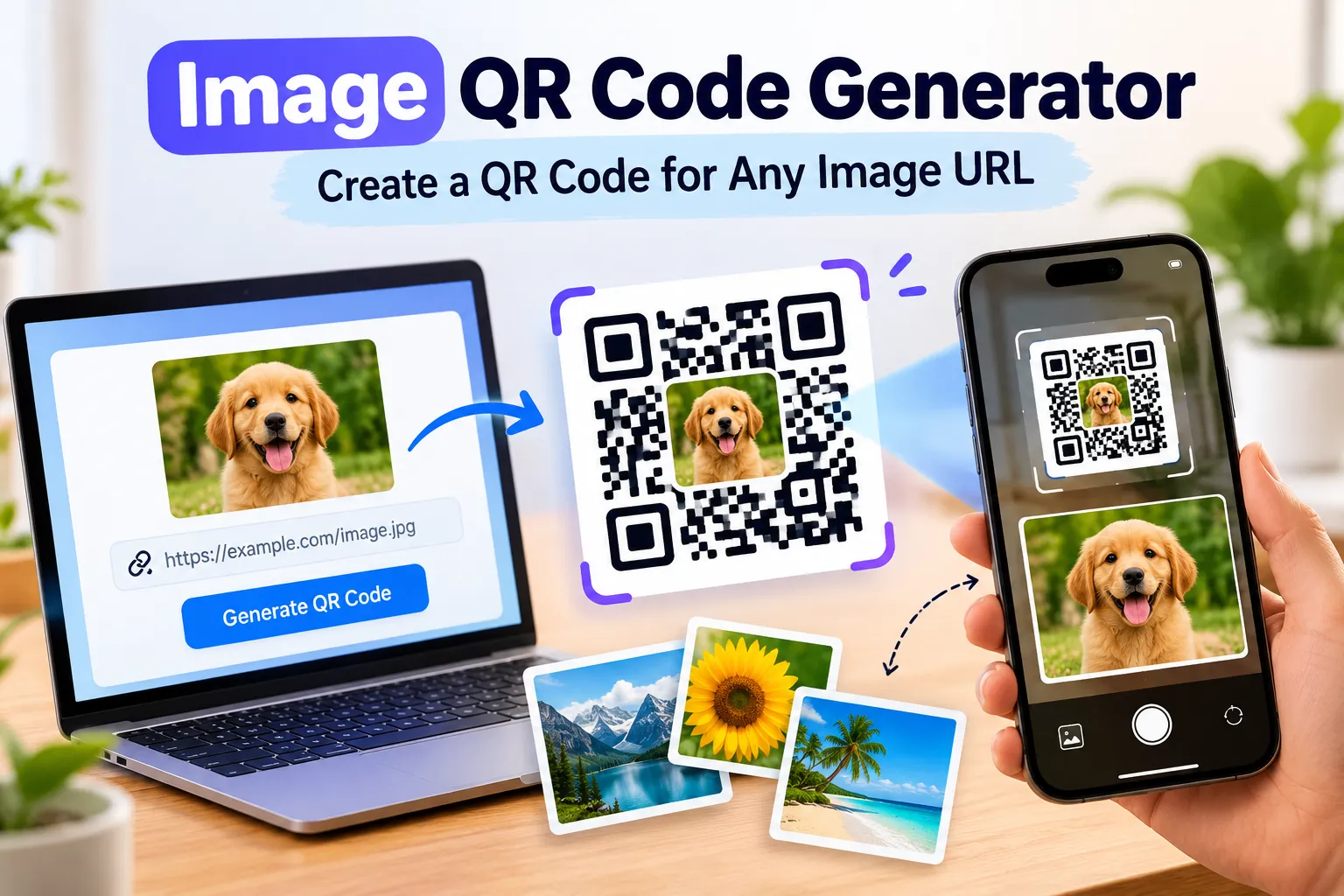
Image QR Code Generator: Create a QR Code for Any Image URL
Have you ever wanted to share a photo without sending a long link in a message or printing a web address on a poster? An image QR code generator offers a practical way to make an image easier to access. Instead of asking someone to type a URL, you can let them scan a QR code and open the image on their phone.
With FastQR, you can create a QR code using an image URL and share it on printed materials, business cards, product packaging, invitations, or digital designs. The important part is to make sure your image is available at a working, publicly accessible web address before creating the code.
In this guide, you will learn how an image QR code works, how to create one, where to use it, and what to do if you want to scan a QR code saved inside an existing picture. Whether you are sharing personal photographs, product images, or a creative portfolio, the right setup can make the process straightforward.
What Is an Image QR Code Generator?
An image QR code generator is a tool that creates a scannable QR code linked to an image's online location. When someone scans the code with a compatible smartphone, they can open the destination and view the picture.
For example, imagine you run a small online shop and want customers to see additional product photos while browsing a printed catalogue. You can upload the pictures to a suitable hosting service, copy the public image URL, and use an image QR code maker to turn that link into a scannable code.
The QR code does not necessarily contain the entire image itself. In a URL-based setup, it stores the destination address. The image remains hosted online, and the visitor needs an internet connection if the destination requires one.
This is useful for JPG and PNG files, provided the link points to an accessible image or a page that displays it.
How Does an Image QR Code Work?
A QR code is a two-dimensional barcode that a smartphone camera or QR code scanner can read. Depending on its contents, it can direct a user to a website, display text, or trigger another supported action.
When you create a QR code for an image URL, the process is simple:
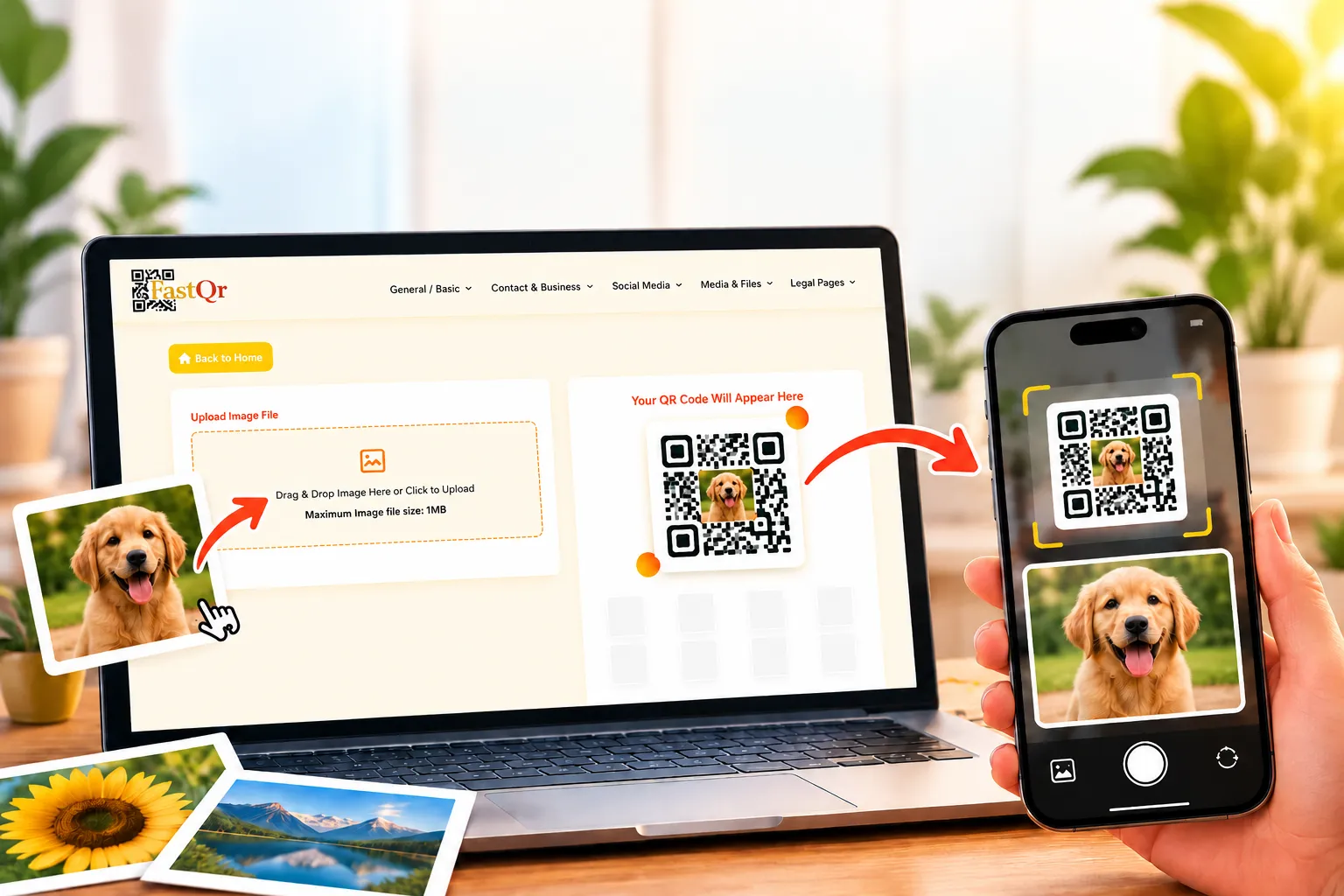
Host your image: Make sure the photo is available online through a public link.
Copy the image URL: Use the direct link or a public page that displays the image.
Generate the QR code: Enter the URL into the appropriate image or URL option in the QR code generator.
Download the code: Save the generated QR image to your device.
Test the result: Scan it with a phone and confirm that the correct image opens.
A useful distinction is that an image QR code generator creates a code that points to a picture. A QR code scanner from image, on the other hand, reads a QR pattern already present in a photograph, screenshot, or saved graphic. These are two different tasks.
Ready to make your code? Try FastQR's free QR code generator: https://fastqr.in/
Can You Convert JPG or PNG to a QR Code?
You can make a scannable QR code for a JPG or PNG picture by linking it to an image hosted online and accessible to your intended audience. This is different from converting every pixel of the original picture into QR code data.
JPG to QR code
If your photograph is saved as a JPG file, first make it accessible through a public URL. Then use that address to create the code.
A JPG to QR code workflow is useful for product photography, event images, travel photographs, and promotional pictures. Remember that the QR code will only keep working while the destination remains available.
PNG to QR code
A PNG image can be shared in the same way. This format is commonly used for illustrations, transparent graphics, screenshots, and designs.
First, upload your PNG file to a hosting service that provides public access. Then copy the image's shareable URL and paste it into the QR code generator to create your code. If the destination is a page rather than a direct image file, the visitor may see the page around the picture as well.
What about uploading a picture directly?
A URL-based image QR code generator is not the same as a tool that embeds a full image file into a QR code. Large image files generally need to be hosted online, with the QR code pointing to their location.
Want to share a collection of pictures at once? Put your photos in an online album or gallery, then generate a QR code that directs visitors to the collection. This can be more convenient than printing a separate code for every photo.
How to Scan a QR Code From an Existing Image
Scan an existing QR code saved in a photo or screenshot. Instead, you have a screenshot, photograph, or saved graphic that already contains a QR pattern.
Use a QR code scanner to read an existing code instead of generating a new one.
Scan a QR code saved on your phone
On many smartphones, you can open the saved image in a gallery or photo application and look for a built-in option that recognises QR codes. The exact steps depend on your phone and operating system.
Scan a QR code from a saved image using a trusted QR code scanning app.
Scan QR code online from image
An online QR code scanner from image may allow you to select a screenshot or picture and decode the QR pattern inside it. Before uploading a file, check the service's privacy policy and avoid uploading images containing private information.
This can help when the code appears in a PDF screenshot, a saved poster, or a picture received through a messaging app.
Read QR code from image on a computer
If the QR code is saved on your computer, use a reputable scanning tool that supports image files. Some tools can decode a code from a local upload, while others require a camera.
A clear, uncropped image is easier to read. If the code is blurry, distorted, or partly covered, try obtaining a better copy.
Open a QR code from an image safely
Before opening a decoded link, inspect the destination address. QR codes can direct users to legitimate pages, but they can also be used to disguise suspicious links.
If a destination looks unfamiliar, asks for sensitive details unexpectedly, or imitates a trusted service, do not proceed. Scanning a QR code should not replace checking whether its destination is safe.
Image QR code vs. QR code inside an image
Feature | QR code linking to an image | QR code inside a screenshot |
|---|---|---|
Main purpose | Share an online picture | Read an existing QR code |
Starting point | Image URL | Saved picture or screenshot |
Required tool | QR code generator | QR code scanner or decoder |
Internet required | Usually needed to access the image | Depends on the encoded destination |
Typical use | Product photos, portfolios, galleries | Opening links received in screenshots |
Tips for Creating a QR Code That Scans Reliably
A working destination is only part of the job. The printed or displayed code must also be readable.
Use a stable URL: Avoid temporary image links that may expire.
Keep enough contrast: A dark QR pattern on a light background is usually a reliable choice.
Leave clear space around the code: Avoid placing text or decorative elements directly against its edges.
Choose an appropriate size: A code intended for a large poster needs to be bigger than one displayed on a phone screen.
Avoid excessive compression: Blurred edges can make scanning more difficult.
Test the final design: Scan the code after inserting it into the actual document or artwork.
Check mobile access: Confirm that the image opens correctly on a smartphone, not only on your computer.
If you use a QR code for a long-running campaign, check the destination periodicallyTest QR code links regularly to ensure the destination image or webpage remains accessible.
. Moving or deleting the image can leave the code pointing to a broken link.
Common Problems With Image QR Codes
The QR code scans, but the image does not open
The image URL might be private, expired, mistyped, or restricted by the hosting service. Open the link directly in a browser and confirm that it works without your account being signed in.
The QR code will not scan
Try enlarging it, improving contrast, and leaving more blank space around the pattern. Test the downloaded file before changing the underlying URL.
The code opens a web page instead of the image
The link may point to a gallery, a sharing page, or a hosting preview. That is not necessarily a problem, but it may be different from what you intended. If you want a direct image, use a valid direct URL where the host permits it.
The image has disappeared
A QR code that points to an image URL cannot restore a file that has been removed. Keep the original file backed up and avoid changing the destination after distributing printed codes.
People cannot access a shared gallery
Review the gallery's access settings. If recipients need an account or permission, explain that before they scan or choose a destination that is easier for your intended audience to access.
Is a Free Image QR Code Generator Worth Using?
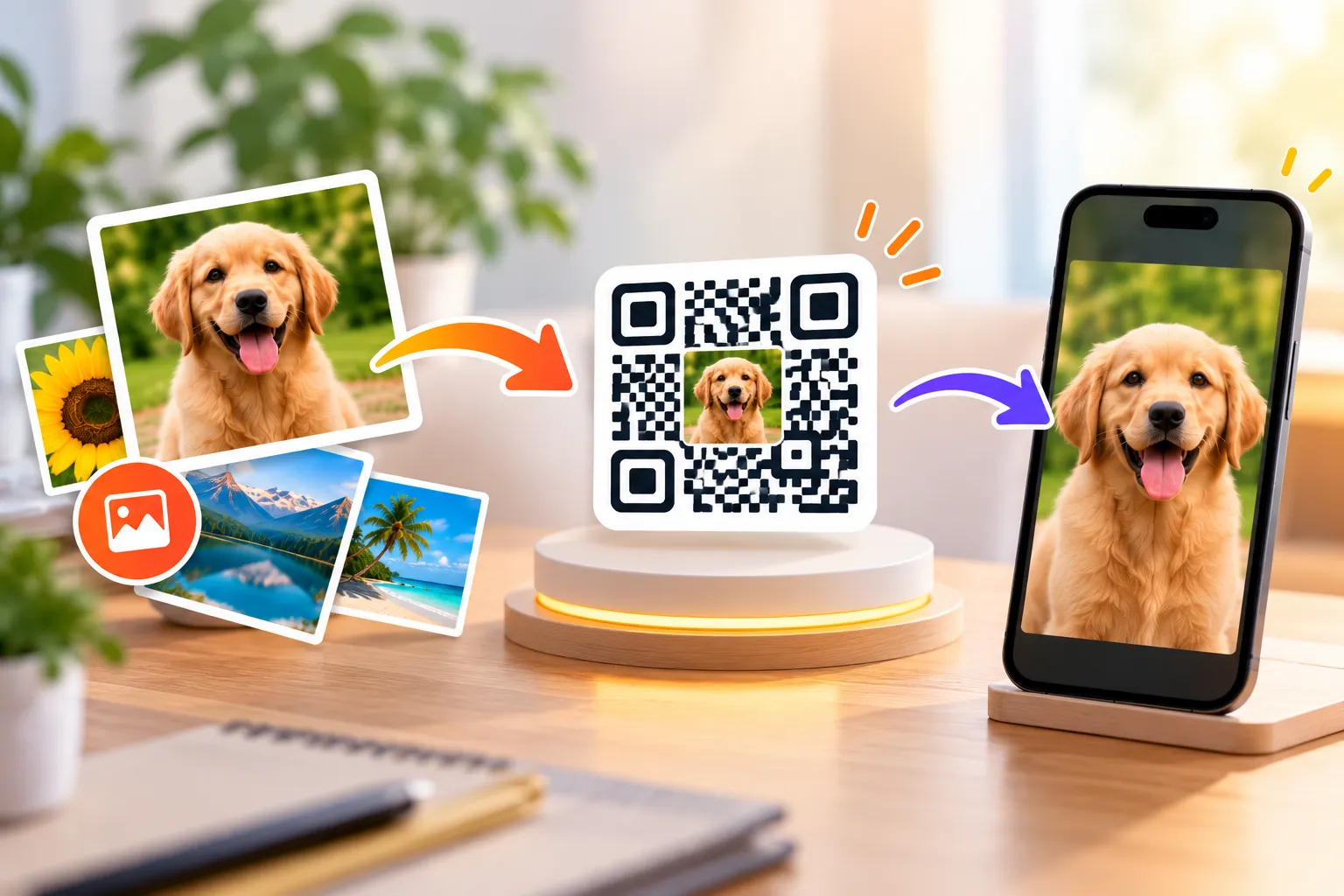
For straightforward image sharing, a free QR code generator can be enough. It can help individuals and businesses make scannable links without investing in specialist design software.
The important question is not simply whether a tool is free. Check that it creates a readable code, provides a suitable download, and supports the content type you need.
FastQR describes its QR code creation service as free and says that users can create codes without signing up. For image sharing, prepare your image URL first and test the final code before distributing it.
Remember that the QR code itself does not guarantee permanent image hosting, privacy, analytics, or unlimited access. Those details depend on the destination service and the generator's actual features.
Frequently Asked Questions About Image QR Code Generators
1. How does an image QR code generator help share pictures?
An image QR code generator turns an image's web address into a scannable pattern. You can place that pattern on a flyer, product label, invitation, or website so people can reach your picture by scanning it with their phone.
2. What do I need before creating a QR code for a photo?
You need an image hosted at a web address that other people can open. Copy the shareable URL, enter it into a suitable QR code generator, and create your code. Test the link in a browser where you are not signed in to the hosting account.
3. Can FastQR generate a QR code from a JPG or PNG link?
You can use a publicly accessible JPG or PNG URL with a compatible URL-based QR code generator. The code points to the online file rather than storing the complete photograph inside the QR pattern.
4. How can I share a collection of pictures through one QR code?
Instead of generating a separate code for every photograph, place your pictures in an online album or gallery. Create a QR code for the gallery's public link, allowing visitors to browse the collection from one destination.
5. Why does my QR code open a webpage instead of showing the picture directly?
Some image-hosting services open a preview page around the photograph rather than displaying the file by itself. If you want the picture to open directly, check whether your hosting service provides a direct image URL and test that address before generating the code.
6. How can I scan a QR code that appears in a screenshot?
Open the screenshot in your phone's photo application and check whether it can recognise the QR pattern. If it cannot, use a trusted QR code reader that supports saved images. Review the decoded link before visiting the destination.
7. Can I use an online QR code scanner from an image file?
Yes, some web-based scanning services let you select an image from your device and extract the information encoded in its QR pattern. Check the service's privacy terms before uploading screenshots or photographs containing personal details.
8. Is an image QR code different from a QR code saved as a picture?
Yes. An image QR code is a QR pattern that points to an image or another online destination. A QR code saved as a picture is simply a file containing the QR pattern itself. The first helps share visual content; the second can be scanned to retrieve its encoded information.
9. What happens if the online image link stops working?
The QR code may still be readable, but its destination will no longer display the intended picture. This can happen if the file is removed, its address changes, or access is restricted. Keep the image available online and test important QR codes occasionally.
10. Can I put an image QR code on packaging or promotional material?
Yes. Businesses can use image-linked QR codes on packaging, brochures, display boards, and printed catalogues to connect customers with additional product photographs or visual information. Test the printed version before distributing it widely.
11. Do people need a special application to view an image through a QR code?
Usually, a modern smartphone camera can recognise a QR code without requiring a separate scanner app. After scanning, the user can open the destination in a browser. Access still depends on the image URL and any permissions imposed by the hosting service.
Conclusion: Create an Image QR Code With FastQR
An image QR code generator makes it easier to share a picture through a scannable link. You can use this approach for product photography, portfolios, artwork, event albums, educational visuals, and many other purposes.
The process starts with a publicly accessible image URL. Generate the QR code, download it, and test it on a phone before printing or sharing it. If you want to read a QR code that is already inside a screenshot or picture, use a compatible QR code scanner instead.
For a simple starting point, visit FastQR and try its free QR code generator. Choose the appropriate content type, enter the correct URL, and make sure the destination works as expected.
Create your QR code with FastQR: https://fastqr.in/