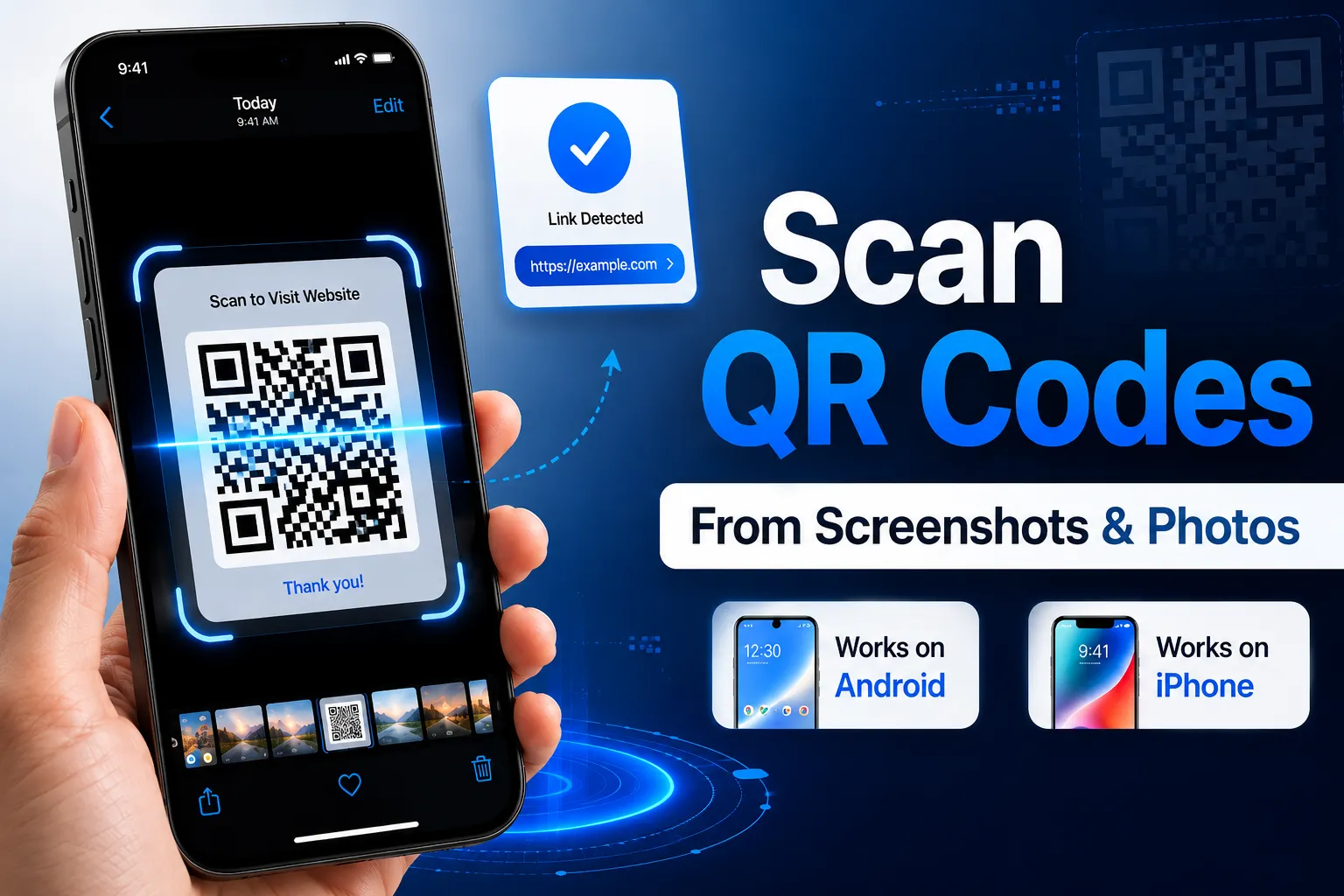
Imagine a friend sends you a QR code on WhatsApp to join a Wi-Fi network or make a UPI payment. You save the image, but then realize the QR code is on the same phone you're trying to use. Do you need another device to scan it?
Fortunately, the answer is no.
Modern Android and iPhone devices can scan QR codes directly from screenshots, photos, PDFs, and downloaded images. In this guide, you'll learn multiple ways to scan a QR code from a screenshot on the same phone, along with troubleshooting tips and security best practices.
But what happens when the QR code is already saved on your phone as a screenshot or photo?
Many users assume they need a second device to scan the code. In reality, modern smartphones provide several ways to scan a QR code directly from an image stored in your gallery. Whether you're using Android or iPhone, you can easily extract the information from a QR code without needing another phone.
In this comprehensive guide, you'll learn how to scan a QR code from a screenshot or photo on the same phone, the best methods available, common issues you may encounter, and how online tools like FastQR can help simplify the process.
Why Would You Need to Scan a QR Code From a Screenshot?
Before diving into the methods, let's understand why this situation is so common.
You may receive QR codes through:
WhatsApp messages
Email attachments
Social media posts
Online advertisements
Event tickets
Digital payment requests
PDF documents
Website screenshots
In all these cases, the QR code is already saved on your device. Since your camera cannot scan an image displayed within the same phone screen, you need an alternative method.
Fortunately, there are several easy solutions.
Can You Scan a QR Code From a Photo?
Yes, absolutely.
Modern smartphones use image recognition technology to detect and decode QR codes stored in photos. Instead of opening the camera and pointing it at a physical QR code, your device analyzes the image and extracts the encoded information.
Depending on your phone, this can be done using:
Google Lens
Google Photos
Apple Photos
Live Text
Built-in QR code scanners
Online QR code readers
Third-party QR scanner apps
The exact process varies slightly between Android and iPhone devices.
How to Scan a QR Code From a Screenshot on Android
Android users have several built-in options available.
Method 1: Scan QR Code Using Google Photos
Google Photos is one of the easiest ways to scan QR codes from screenshots.
Steps:
Open Google Photos.
Locate the screenshot containing the QR code.
Open the image.
Tap the Google Lens icon.
Wait a few seconds.
Google Lens will detect the QR code automatically.
Tap the displayed link or action.
That's it.
The QR code content will instantly appear on your screen.
Benefits
Free to use
No additional app needed
Fast recognition
Works with screenshots and downloaded images
Method 2: Scan QR Code Using Google Lens Directly
Google Lens is built into most Android devices.
Steps:
Open Google Lens.
Tap the gallery icon.
Select the screenshot or image containing the QR code.
Wait for Lens to process the image.
The decoded information will appear automatically.
Google Lens can recognize:
Website URLs
Contact information
Wi-Fi credentials
Payment links
Product information
Event details
Method 3: Use Your Phone's Native Gallery App
Some Android manufacturers include QR code recognition directly in their gallery applications.
Brands that often support this feature include:
Samsung
Xiaomi
OnePlus
Oppo
Vivo
Realme
Steps:
Open the image.
Look for:
Scan QR Code
Detect QR
Lens
Recognize
Tap the option.
View the decoded result.
The exact wording depends on your device manufacturer.
How to Scan a QR Code From a Saved Image Online
Sometimes your phone doesn't recognize the QR code.
In such situations, online QR scanners can help.
Process:
Save the screenshot.
Open a trusted QR scanning website.
Upload the image.
Wait for the QR code to be decoded.
View the result instantly.
This method works on:
Android phones
iPhones
Tablets
Laptops
Desktop computers
Online tools are especially useful when dealing with damaged or low-quality QR codes.
Common Types of QR Codes You Can Scan
QR codes store different types of information.
Website URLs
The most common QR code type.
Examples:
Product pages
Blog articles
Landing pages
App download links
Wi-Fi QR Codes
These automatically connect users to a wireless network.
Stored information includes:
Network name
Password
Security type
Contact Information
vCard QR codes can save contact details directly to your phone.
Information may include:
Name
Phone number
Email
Company
Website
Payment QR Codes
Widely used for digital payments.
Examples include:
UPI QR codes
Business payment links
Donation links
Event QR Codes
Commonly used for:
Concert tickets
Conference passes
Webinar registrations
Check-ins
Why QR Codes Sometimes Fail to Scan
Not every QR code scans perfectly.
Several factors can affect readability.
Low Image Quality
Blurry screenshots make QR detection difficult.
Solution
Use the original image whenever possible.
Cropped QR Code
If part of the QR code is missing, decoding may fail.
Solution
Capture the entire QR code before saving.
Poor Contrast
Light-colored QR codes on bright backgrounds can be difficult to detect.
Solution
Increase image contrast or brightness.
Damaged QR Code
Missing modules can prevent recognition.
Solution
Request a new copy if available.
Unsupported QR Format
Some older scanner apps struggle with advanced QR code types.
Solution
Use Google Lens or a modern QR scanning platform.
Best Ways to Scan a QR Code From a Screenshot
| Method | Android | iPhone | Requires App | Ease of Use |
|---|---|---|---|---|
| Google Lens | Yes | Yes | No | Very Easy |
| Google Photos | Yes | Yes | No | Easy |
| Apple Photos | No | Yes | No | Easy |
| Online QR Scanner | Yes | Yes | No | Easy |
| Third-Party Apps | Yes | Yes | Yes | Medium |
Best Practices for Scanning QR Codes From Screenshots
To improve success rates, follow these recommendations.
Save High-Resolution Images
Higher quality images provide better scanning accuracy.
Avoid Excessive Compression
Compressed screenshots may lose important QR code details.
Keep the Entire Code Visible
Never crop the edges of the QR code.
Use Trusted QR Scanners
Avoid unknown applications that may collect personal information.
Verify Links Before Opening
Always confirm the destination before tapping suspicious links.
Security Tips When Scanning QR Codes
Follow these safety tips:
Check the Destination URL
Ensure the website is legitimate before proceeding.
Avoid Unknown Payment Requests
Never send money through unfamiliar QR codes.
Watch for Phishing Attempts
Cybercriminals often hide malicious links inside QR codes.
Use Secure Devices
Keep your phone updated with the latest security patches.
Verify Business Authenticity
Only scan QR codes from trusted brands and businesses.
Advantages of Scanning QR Codes From Photos
There are several benefits to this approach.
Convenience
No second device is required.
Faster Access
Instantly retrieve information from saved images.
Better Organization
Store QR codes in your gallery for future use.
Increased Productivity
Access links, documents, and payment details without additional steps.
Cross-Platform Compatibility
Works on Android, iPhone, tablets, and computers.
When Should You Use an Online QR Scanner?
An online QR scanner becomes useful when:
Google Lens isn't available.
Your gallery cannot recognize QR codes.
The QR code is embedded inside a PDF.
You need to scan from a desktop computer.
Multiple QR codes must be processed quickly.
Many users prefer browser-based tools because they work across all devices without requiring app installation.
Why FastQR Makes QR Code Scanning Easier
When you need a quick and reliable way to read QR codes from screenshots, FastQR provides a simple solution.
With FastQR, users can:
Scan QR codes from images
Read QR codes from screenshots
Decode URLs instantly
Access QR content quickly
Use the tool from any device
Avoid installing additional software
Whether you're dealing with a payment QR code, website link, event ticket, or Wi-Fi code, FastQR helps simplify the scanning process.
How to Scan Multiple QR Codes From a Single Image
Sometimes a screenshot or photo may contain more than one QR code. This situation is becoming increasingly common in event brochures, restaurant menus, business presentations, product packaging, and promotional materials.
When multiple QR codes appear in the same image, most modern QR code scanners will attempt to identify each code separately and allow you to choose which one to open.
Ways to Scan Multiple QR Codes
Using Google Lens
Google Lens can often detect multiple QR codes within a single image. Simply:
Open the image in Google Photos.
Tap the Google Lens icon.
Wait for the analysis to complete.
Select the QR code you want to access.
Using Online QR Code Readers
Some online QR scanners are designed to detect and decode multiple QR codes simultaneously. This can be especially useful for businesses managing large numbers of QR codes.
Benefits of Multi-QR Detection
Saves time when processing multiple codes.
Useful for event organizers and marketers.
Helps compare different QR code destinations.
Reduces the need to crop images manually.
As QR codes become more widely used in marketing and digital communication, the ability to scan multiple QR codes from a single screenshot is becoming an increasingly valuable feature.
QR Code Scanning Trends and Future Technology
QR code technology has evolved significantly over the past few years, and its adoption continues to grow worldwide. What began as a tool for inventory tracking is now used for payments, authentication, marketing, ticketing, customer engagement, and much more.
Growing Popularity of QR Codes
Businesses across industries now use QR codes for:
Contactless payments
Restaurant menus
Product information
Customer reviews
Digital business cards
Loyalty programs
App downloads
Marketing campaigns
The widespread adoption of smartphones has made QR codes one of the most effective tools for connecting offline and online experiences.
AI-Powered QR Recognition
Modern smartphones increasingly use artificial intelligence (AI) to improve QR code detection.
AI-powered scanning can:
Detect damaged QR codes.
Recognize partially visible codes.
Improve low-quality image processing.
Identify QR codes faster.
Reduce scanning errors.
This means users can successfully scan QR codes even from older screenshots or photos that may not have perfect image quality.
What the Future Looks Like
Future QR code scanning technology is expected to include:
Instant background QR detection.
Augmented reality (AR) integrations.
Smart QR code recommendations.
Enhanced fraud detection.
Faster image-based QR recognition.
As smartphone technology advances, scanning QR codes from screenshots, photos, PDFs, and digital documents will become even more simple. Users will no longer need dedicated scanning apps, as QR recognition is becoming a standard feature built directly into mobile operating systems.
For businesses and consumers alike, QR codes will remain one of the easiest and most efficient ways to share information digitally.
Frequently Asked Questions (FAQ)
How can I read a QR code that is already saved in my iPhone gallery?
If the QR code is stored as a screenshot or photo on your iPhone, simply open the image in the Photos app. Newer iOS versions can automatically recognize QR codes within images and display a clickable action. You can also use Google Lens for additional scanning options.
What's the easiest way to scan a QR code from a screenshot on Android?
The quickest method is to open the screenshot in Google Photos and tap the Google Lens icon. Within seconds, Lens analyzes the image, identifies the QR code, and shows the stored information, whether it's a website link, payment request, contact card, or Wi-Fi details.
Do I need a second smartphone to scan a QR code from an image?
Not at all. Modern Android and iPhone devices are capable of detecting QR codes directly from images saved on the device. This eliminates the need for another phone, tablet, or external scanner.
Are QR codes in screenshots safe to open?
QR codes themselves are generally safe, but the content behind them may not always be trustworthy. Before opening a link or making a payment, review the destination carefully and ensure it comes from a reliable source.
Why isn't my phone detecting the QR code in the image?
Several factors can prevent successful scanning, including blurry screenshots, low image resolution, cropped QR codes, poor lighting in the original image, or damaged QR patterns. Using a clearer image or a dedicated QR scanner often solves the issue.
Can online QR scanners read QR codes from uploaded photos?
Yes. Many online QR code readers allow you to upload a screenshot, photo, or downloaded image and instantly decode the QR code content. This is useful when your device's built-in scanner cannot recognize the code.
What types of information can be stored inside a QR code?
QR codes can contain various types of data, including website URLs, contact details, Wi-Fi passwords, payment links, event tickets, app download links, business information, and location coordinates.