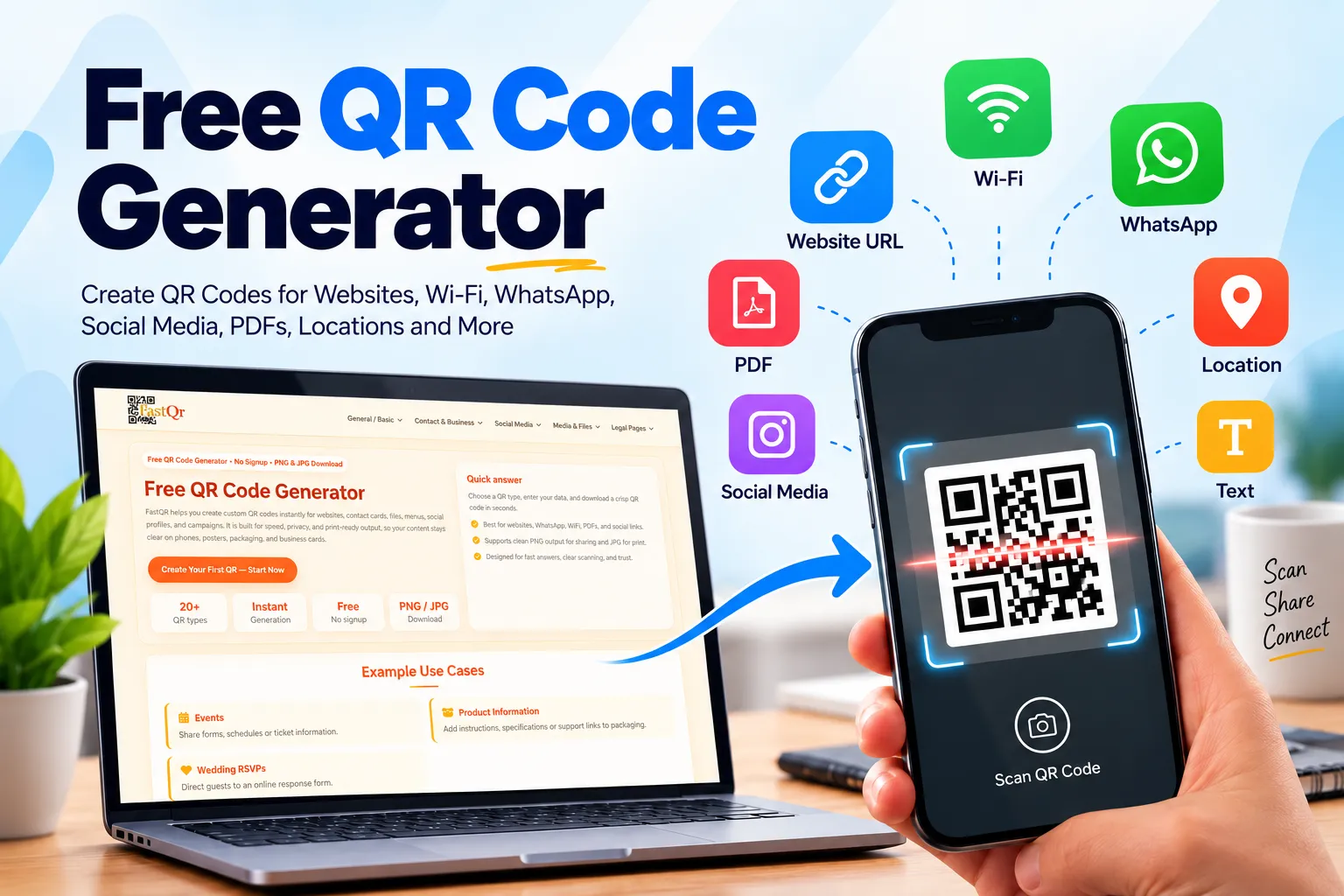
Have you ever wanted to share a website, Wi-Fi password, WhatsApp number, or PDF without asking someone to type a long link? Instead of typing a long web address or searching for information manually, people can scan a QR code to reach the right destination in moments. People can scan it with a smartphone camera and access the information in seconds.
With a free QR code generator, you can create a scannable code for personal use, business promotions, social media profiles, printed materials, and many other everyday needs. You do not need graphic design experience or technical knowledge to get started.
FastQR.in provides a browser-based way to generate QR codes for website URLs, links, Wi-Fi networks, WhatsApp, social profiles, PDFs, locations, and other content types. Its core QR generation features are available without requiring an account, making it convenient when you need a code quickly.
In this guide, you will learn how to create a QR code for free, choose the right QR code type, download your design, avoid common scanning problems, and use QR codes more effectively for personal and business purposes.
What Is a QR Code and How Does It Work?
A Quick Response (QR) code is a square-shaped, machine-readable pattern that encodes data for a smartphone or compatible scanner to interpret. A compatible smartphone camera or QR scanner reads the pattern and processes the information it contains.
Depending on its contents, scanning a QR code can open a website, display text, connect a device to Wi-Fi, start a WhatsApp conversation, or open a map location.
For example, a restaurant can print a QR code on a table card so customers can view its menu. Product packaging can include a scannable code that takes customers to usage guidelines, maintenance advice, or other helpful product details. A teacher can use a QR code on a worksheet to share additional learning material.
The main benefit is convenience. Instead of typing an address or searching for a profile, people can access the intended information with a quick scan.
Create Your Own QR Code Online Without Paying
Creating a QR code is straightforward when you use an online QR code generator. The important part is choosing the correct QR type and checking that the information works before sharing it.
Step 1: Open FastQR.in
Visit FastQR.in and select the generator that matches your needs. You can choose a website URL, Wi-Fi network, WhatsApp contact, PDF, social profile, location, or another supported content type.
Step 2: Enter the information
Start by entering the content you want people to access. If you're sharing a webpage, add its full address. For Wi-Fi access, supply the network name and the connection information requested by the generator. For a location, provide a suitable map link or location information, depending on the generator.
Check everything carefully. A QR code cannot correct a misspelled URL or an incorrect phone number.
Step 3: Generate your QR code
Use the generator's creation option to produce the QR code. Depending on the tool's design options, you might be able to personalise the code with brand colours or a small business logo.
Make sure every design adjustment preserves enough contrast for smartphone cameras to recognise the code accurately. A decorative code is not useful if smartphone cameras struggle to scan it.
Step 4: Download the QR code
Download the generated image using the available format. FastQR offers PNG and JPG downloads for its core QR generation workflow.
PNG is generally a good choice for websites, digital documents, and graphics that need clean edges. JPG can be convenient for common image-sharing and printing workflows, although compression may reduce sharpness.
Step 5: Scan it before using it
Open your phone's camera and scan the downloaded QR code. Confirm that it opens the intended website, displays the correct information, or performs the expected action.
Before ordering a large print run, produce a sample on the intended material and check that it scans under normal lighting conditions. A code that works on a bright computer screen may be harder to scan when printed too small or placed on a reflective surface.
This simple check can prevent frustrating mistakes later.
Different Types of Free QR Codes You Can Create
The best QR code depends on what you want the person scanning it to do. Choosing the correct format makes the experience clearer and reduces unnecessary steps.
1. Website URL QR Code
When scanned, a URL-based QR code takes the user to the webpage encoded in its pattern. It is one of the most practical options for businesses, creators, and individuals.
You can use a no-cost URL QR tool to make webpages easier to open with a smartphone scan. This works well for sharing your homepage, product pages, online forms, or blog articles.
Your business homepage
A product or service page
An online store
An appointment booking page
A registration form
A blog post or portfolio
For example, a freelancer can add a QR code to a printed portfolio. A potential client can scan it to view the freelancer's work without manually typing a web address.
Choose the URL option in your QR tool, enter the complete web address, create the code, save the image, and scan it to verify the destination.
2. QR Codes for Social Media
Give people a quicker way to discover your online presence by linking a QR code directly to your social profile or a specific post.
With a free QR code generator for social media, you can make your online profiles easier to access from printed or digital materials, such as:
Instagram profiles
Facebook pages
YouTube channels
Telegram accounts
Other supported social platforms
For example, a photographer can place an Instagram QR code on a business card. Customers can scan it to view recent work and decide whether to get in touch.
To create an Instagram QR code using a free generator, copy the address of the profile you want visitors to see and use it as the destination. Test the link while logged out, where possible, to understand what a new visitor can see.
Use the same approach for Facebook and other platforms: choose a public destination that remains relevant even if your content changes.
3. Wi-Fi QR Code
Sharing a long Wi-Fi password verbally can be inconvenient, especially in a busy office, guesthouse, café, or home.
A Wi-Fi QR code allows compatible devices to scan the code and connect to the network without manually typing the credentials.
To create one, choose a Wi-Fi generator, enter the network name (SSID), select the correct security type, and provide the password if required. Once the Wi-Fi details have been entered, create the code and try scanning it with a supported smartphone to check whether the connection information works.
A WiFi QR code generator with logo free may be useful if you want to add branding, provided the tool supports logo customisation. Use a restrained logo size and leave the QR pattern clearly visible so branding does not interfere with scanning.
Privacy tip: A Wi-Fi QR code may expose your network credentials to anyone who can scan or photograph it. Display Wi-Fi codes containing private credentials only where you control access; for public visitors, consider creating a separate guest network. Consider using a guest network for visitors.
4. PDF QR Code
A PDF QR code can make a document easier to access without printing multiple copies.
Using a free PDF-to-QR workflow can make documents such as digital menus, instruction booklets, class notes, event programmes, and product catalogues accessible through a quick scan.
The exact process depends on how the generator handles documents. If the tool asks you to upload a PDF, follow its instructions. If it asks for a URL, upload the PDF to a location that permits public access and use its shareable link.
Check the document link in a private or logged-out browser session before printing. This helps reveal whether visitors can access the file without your personal account permissions. If the PDF requires a login or permission, visitors may not be able to view it.
For businesses, keep the linked PDF up to date. If prices, opening hours, or product details change, replace the document at its existing address where possible.
5. Location QR Code
A location QR code helps customers find a shop, office, event venue, restaurant, or meeting point.
A location QR code generator free workflow can use a map link or supported location details to direct visitors to the correct destination.
To make one, open the desired location in a mapping service, copy its shareable link, and use that link if the generator supports URL-based locations. Otherwise, select the location-specific QR option and follow the fields provided.
Test the destination before printing the code. Check that the map pin points to the correct entrance or building, especially for large commercial complexes and event venues.
This can be particularly useful for delivery instructions, invitations, storefront signage, and event registration materials.
6. Email QR Code
An email-enabled QR code can reduce the steps required for someone to reach you by opening a message addressed to the intended recipient on compatible devices. Depending on the QR format and the scanning device, it may open a new email message addressed to the intended recipient.
It can be useful on business cards, service brochures, portfolios, and customer support materials.
Check the email address carefully. If the generator supports a pre-filled subject line, use something meaningful, such as "Website enquiry" or "Appointment request.".
How to Download a QR Code for Free
After generating your QR code, you will usually see a preview and one or more download options.
Follow these steps:
Confirm that the preview matches your intended content.
Choose an available image format, such as PNG or JPG.
Download the file to your device.
Open the downloaded image to make sure it is not corrupted or cropped.
Scan it from the saved file before using it.
FastQR offers PNG and JPG downloads for its core generator workflow. These formats are suitable for many everyday digital and print uses.
If you need to print at a very large size, ask your designer or printer whether a vector format is preferable. If you need a scalable file for professional printing, check the export options first because some free generators provide raster images only.
Frequently Asked Questions About Free QR Code Generators
1. How can I choose a free QR code maker for my needs?
Think about where and how you plan to use the code. For a personal project, a basic generator with image downloads may be enough. For business campaigns, check whether you need branding options, editable destinations, or scan statistics. Compare the available features before settling on a free QR code maker online.
2. Where can I make a QR code without creating an account?
Look for an online QR code generator that allows direct access to its creation tools. FastQR supports core QR generation without account registration, so you can use its available tools without going through a sign-up process. Check the features offered for your selected QR type before starting.
3. Which file formats can I use to save a QR code?
The available formats depend on the generator. FastQR provides PNG and JPG downloads through its core generation workflow. PNG is useful for many digital designs, while JPG may suit ordinary image-sharing tasks. If your printer requests a vector file for a specialised project, confirm that the generator supports the required format before proceeding.
4. What makes an online QR code generator worth using?
A useful generator should support the content you want to share, produce a code that scans reliably, and explain any restrictions on its free features. Simple downloads, clear instructions, and accessible privacy information are also worth considering. Test the output before placing the code on promotional material or distributing it to customers.
5. Can I keep using the same QR code for several years?
Yes, a static QR code can remain usable for a long time without needing to be recreated simply because months or years have passed. Its continued usefulness depends on the accuracy of the encoded information and the availability of its destination. For a code printed on packaging or signage, periodically check that the linked resource still works.
6. How can QR codes help a local business?
QR codes can connect physical materials with useful online resources. A café might use one to display its menu, a retailer could link to product details, and a service provider could direct customers to an enquiry page. Choose a destination that serves a clear purpose, and make sure customers can access it easily on their phones.
7. How do I let visitors connect to Wi-Fi using a QR code?
Use a generator that supports Wi-Fi credentials. Enter the network name and the security information requested by the tool, then create the code. Test it with a compatible device before displaying it. If the network is intended for customers, consider using a guest connection instead of sharing credentials for your private network.
8. What can I do if my QR code will not scan?
Begin by checking the image itself. Blurry downloads, low contrast, distorted proportions, and insufficient space around the code can make scanning difficult. Save a fresh copy from the generator, avoid stretching the image, and try scanning it in good lighting. If the code is intended for print, test its actual printed size rather than relying only on the screen preview.
Creating a QR code does not need to involve complicated software or a lengthy setup process. Once you know what you want to share, you can choose a suitable format, generate the code, and check that it works on a smartphone.
FastQR brings common QR creation tasks into a convenient online workflow for websites, social profiles, Wi-Fi, documents, WhatsApp, and locations.
Ready to get started? Visit FastQR.in to create a free QR code for your next project. Save the image, verify the destination, and use it wherever a quick scan can make information easier to reach.