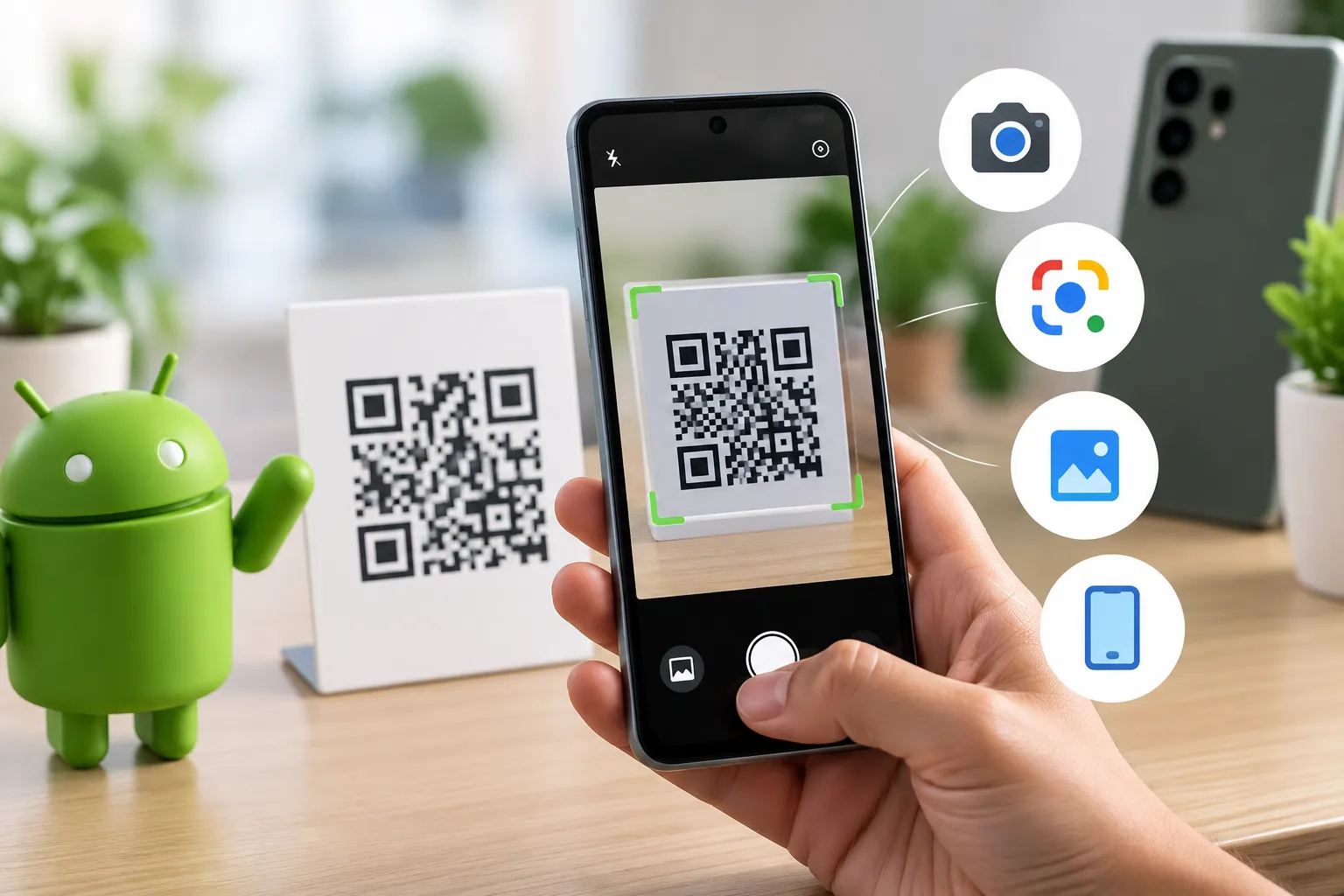
QR codes have become an essential part of daily life. Whether you're making a UPI payment, joining a Wi-Fi network, accessing a website, downloading an app, or transferring data between devices, QR codes provide a fast and convenient way to connect information.
If you're searching for how to scan QR code on Android, the good news is that most modern Android devices already include a built-in QR scanner. In many cases, you don't need to install a separate QR code scanner for Android.
This guide explains everything you need to know about scanning QR codes on Android phones, tablets, Samsung Galaxy devices, Google Pixel phones, and Android 15 devices. You'll also learn how to scan QR codes from screenshots, gallery images, and your phone screen using Google Lens.
Can Android Phones Scan QR Codes?
Yes. Almost all modern Android smartphones come with an Android QR scanner built in. Most devices can scan QR codes directly through the camera app or Google Lens.
Popular Android brands that support QR scanning include:
- Samsung Galaxy
- Google Pixel
- OnePlus
- Xiaomi
- Vivo
- Oppo
- Motorola
- Realme
If you're wondering "can Android phones scan QR codes?", the answer is absolutely yes.
How to Scan QR Code on Android Using the Camera
The easiest way to scan QR code Android camera is through the default camera application.
Steps:
- Open the Camera app.
- Point the camera toward the QR code.
- Ensure the QR code is clearly visible.
- Wait for the QR scanner to detect the code.
- Tap the notification or popup link.
- The linked website, app, contact, or information will open.
This is the fastest method for people searching how to scan QR code with Android phone or scan QR code from camera Android.
Why It Works
Modern Android devices include an Android camera QR scanner that automatically recognizes QR codes without requiring additional software.
How to Scan QR Code on Android Without App
Many users search for how to scan QR code on Android without app because they don't want to install another application.
Fortunately, Android's built-in scanner handles most QR codes.
Method 1: Camera App
Open your camera and point it at the code.
Method 2: Google Lens
Google Lens is available on most Android phones and can scan QR codes instantly.
Method 3: Quick Settings QR Scanner
Some Android versions include a dedicated QR scanner shortcut in Quick Settings.
This makes scan QR code without app Android one of the easiest tasks on modern smartphones.
How to Scan QR Code on Android with Google Lens
Google Lens is one of the most reliable tools for QR scanning.
Many users specifically search for how to scan QR code with Google Lens because it can scan QR codes from both real-world objects and images.
Steps:
- Open Google Lens.
- Point your camera at the QR code.
- Wait for Lens to recognize the code.
- Tap the displayed result.
Google Lens can also identify:
- Websites
- Contact information
- Product details
- Wi-Fi credentials
- Payment links
This method is often preferred as a Google Lens QR code scanner Android solution.
How to Scan QR Code on Android Screen
A common issue occurs when the QR code is displayed on the same phone you want to scan.
People often search:
- how to scan qr code on android screen
- how to scan qr code on android phone screen
Since the camera cannot scan what's already on the screen, use Google Lens.
Steps:
- Take a screenshot of the QR code.
- Open Google Photos.
- Select the screenshot.
- Tap the Google Lens icon.
- Lens will read the QR code automatically.
This method works perfectly for social media QR codes, payment QR codes, and login authentication QR codes.
How to Scan QR Code on Android in Gallery
Many users receive QR codes through WhatsApp, Telegram, Email, or Downloads.
If you're looking for how to scan qr code on android in gallery, follow these steps:
Using Google Photos
- Save the image containing the QR code.
- Open Google Photos.
- Select the image.
- Tap Google Lens.
- The QR code information will appear instantly.
This is one of the easiest ways to scan QR code from image Android.
How to Scan QR Code from Screenshot Android
QR codes frequently appear in screenshots.
Steps:
- Open the screenshot.
- Tap the Google Lens icon.
- Wait for analysis.
- Tap the detected result.
This process is commonly known as:
- Google Lens scan QR code screenshot
- Scan QR code from screenshot Android
- Scan QR code from photo using Google Lens
How to Scan QR Code on Samsung
Samsung devices have excellent QR scanning support.
Many users search:
- how to scan qr code on samsung
- samsung qr code scanner
- samsung camera qr scanner
- how to scan qr code on samsung galaxy
Method 1: Samsung Camera
- Open Camera.
- Point it toward the QR code.
- Tap the detected notification.
Method 2: Samsung Quick Settings
- Swipe down from the top.
- Open Quick Settings.
- Tap "Scan QR Code."
- Scan the code.
This is the preferred method for how to scan qr code on android samsung devices.
How to Scan QR Code on Google Pixel
Google Pixel phones make QR scanning incredibly simple.
Steps:
- Open Camera.
- Point at the QR code.
- Wait for detection.
- Tap the result.
You can also use Google Lens directly through the camera interface.
Many users searching how to scan qr code on google pixel can complete the process in seconds.
Scan QR Code on Android 15
Android 15 continues to improve QR scanning features.
Features Include:
- Faster QR detection
- Improved camera recognition
- Enhanced Google Lens integration
- Better privacy controls
Users searching how to scan qr code on android 15 can generally use either the Camera app or Google Lens.
How to Enable QR Code Scanner on Android
If QR scanning isn't working, you may need to enable it.
Steps:
- Open Camera Settings.
- Locate QR scanning options.
- Enable "Scan QR Codes."
- Restart the camera app.
This solves many searches related to:
- where is qr scanner on android
- how to enable qr code scanner on android
- qr code scanner android camera settings
Scan QR Code on Android Tablet
The process for how to scan qr code on android tablet is nearly identical to phones.
Steps:
- Open the Camera app.
- Point toward the QR code.
- Tap the detected result.
If the tablet lacks QR detection, use Google Lens.
Popular Android tablets from Samsung, Lenovo, and Xiaomi support QR scanning.
Scan QR Code on Android Mobile
Whether you're using Samsung, Pixel, Motorola, Vivo, Oppo, or OnePlus, the process remains similar.
Quick Method
- Open Camera.
- Point at QR code.
- Tap notification.
This is the simplest answer for users searching how to scan qr code on android mobile.
Scan QR Code on Android to Transfer Data
QR codes are commonly used for data transfer.
Examples include:
- Wi-Fi sharing
- Contact sharing
- App login verification
- Device pairing
- Payment transfers
Steps
- Open Camera or Google Lens.
- Scan the transfer QR code.
- Confirm the requested action.
- Complete the transfer.
This method is commonly used when searching how to scan qr code on android to transfer data.
QR Code Not Scanning on Android? Easy Fixes
Sometimes QR codes fail to scan.
If you're experiencing:
- QR code not scanning Android
- Android camera not reading QR code
- QR scanner not working Android
Try these solutions.
1. Improve Lighting
Poor lighting reduces QR detection accuracy.
2. Clean the Camera Lens
Dust and fingerprints can interfere with scanning.
3. Move Closer
Ensure the QR code fills enough of the screen.
4. Update Your Device
Install the latest Android updates.
5. Use Google Lens
Lens often detects codes the camera misses.
6. Check Internet Connectivity
Some QR actions require internet access.
7. Verify QR Code Quality
A blurry QR code may not scan correctly.
These solutions help resolve most QR code scanner troubleshooting Android issues.
Do You Need a QR Code Scanner App?
In most situations, no.
Modern Android devices already provide:
- Built-in camera scanning
- Google Lens QR scanning
- QR shortcuts
- Native Android support
You typically only need a third-party QR code reader app if your device is very old.
Benefits of Using QR Codes
QR code technology offers several advantages:
Fast Access
Open websites instantly.
Contactless Experience
Useful for menus, payments, and check-ins.
Easy Data Sharing
Share contacts, Wi-Fi credentials, and files.
Better User Experience
No manual typing required.
Business Applications
Many businesses use QR codes for:
- Marketing campaigns
- Product information
- Customer feedback
- Digital payments
Android QR Scanner Comparison
| Device | Camera QR Scanner | Google Lens Support | Quick Settings QR Scanner |
|---|---|---|---|
| Samsung Galaxy | Yes | Yes | Yes |
| Google Pixel | Yes | Yes | No |
| OnePlus | Yes | Yes | Depends on Model |
| Xiaomi | Yes | Yes | Depends on Version |
| Motorola | Yes | Yes | Limited |
QR Code Usage is Growing Rapidly
- QR codes are now widely used across industries, including retail, education, healthcare, banking, and digital payments.
- Some common uses include:
- - UPI and contactless payments
- - Restaurant menus
- - Event tickets
- - Product packaging
- - Business cards
- - Wi-Fi sharing
- As Android devices continue improving built-in QR scanning features, QR codes are becoming one of the fastest ways to access information without typing URLs manually.
Frequently Asked Questions (FAQ)
Scanning QR codes on Android has never been easier. Whether you're using a Samsung Galaxy, Google Pixel, OnePlus, Xiaomi, or another Android device, most phones now include a built-in QR scanner through the Camera app or Google Lens.
From opening websites and joining Wi-Fi networks to making UPI payments and sharing contact information, QR codes help users complete everyday tasks in seconds. If your phone doesn't recognize a QR code immediately, Google Lens provides a reliable backup solution for scanning codes from screenshots, gallery images, and even your phone screen.